Description
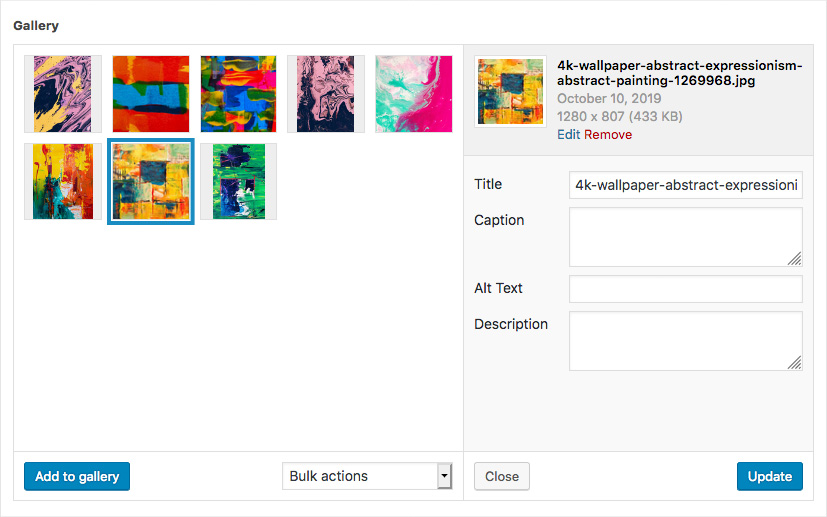
The Gallery field provides an interactive interface for managing a collection of attachments.
Screenshots
Changelog
- Added
Minimumsetting in version 5.1.9. - Added
Maximumsetting in version 5.1.9. - Added
Allowed File Typessetting in version 5.1.9.
Settings
-
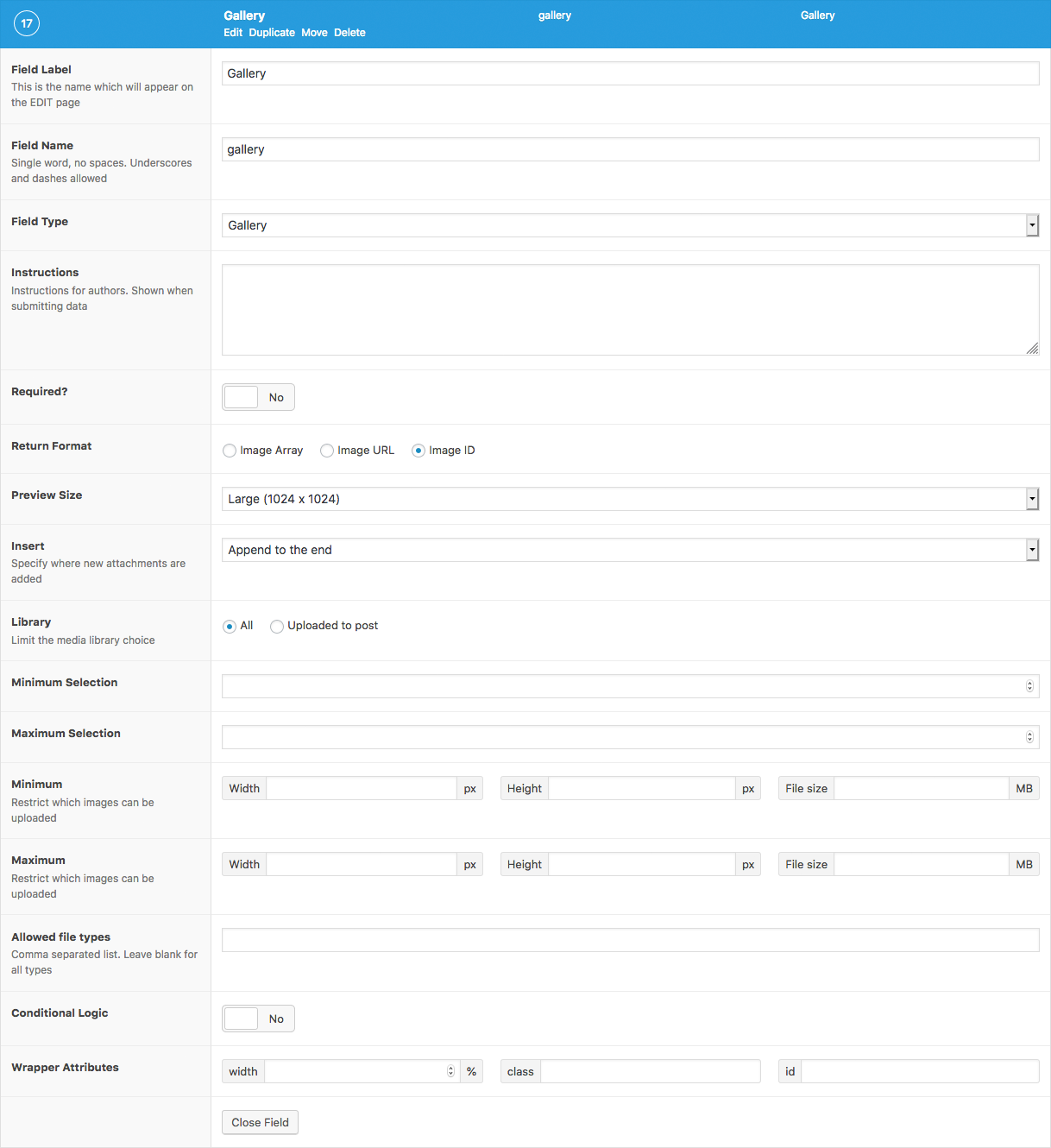
Return Format
Specifies the format of the returned data. Choose from Array (array), URL (string), or ID (integer). -
Preview Size
The WordPress image size displayed when editing. -
Insert
Specifies where new attachments are added. Chose from either Beginning or End. -
Library
Limits file selection to only those that have been uploaded to this post, or the entire library. -
Minimum Selection
The minimum number of attachments required for field validation. -
Maximum Selection
The maximum number of attachments allowed for field validation. -
Minimum
Adds upload validation for minimum width in pixels (integer), height in pixels (integer) and filesize in MB (integer). The filesize may also be entered as a string containing the unit. eg.’400 KB’. -
Maxiumum
Adds upload validation for maximum width, height and filesize. -
Allowed File Types
Adds upload validation for specific file types. Enter a comma separated list to specify which file types are allowed or leave blank to accept all types.
Template usage
The Gallery field will return an array of attachments where each attachment is either an array, a string or an integer value depending on the Return Format set.
Display list of images
This example demonstrates how to loop over a Gallery field value and display a list of images. It uses the wp_get_attachment_image() function to generate the image HTML. The field in this example uses ID as the Return Format.
This function also generates the srcset attribute allowing for responsive images!
<?php
$images = get_field('gallery');
$size = 'full'; // (thumbnail, medium, large, full or custom size)
if( $images ): ?>
    <ul>
        <?php foreach( $images as $image_id ): ?>
            <li>
                <?php echo wp_get_attachment_image( $image_id, $size ); ?>
            </li>
        <?php endforeach; ?>
    </ul>
<?php endif; ?>
Display list of images with custom HTML
This example also demonstrates how to loop over a Gallery field value and display a list of images. The field in this example uses Array as the Return Format.
<?php
$images = get_field('gallery');
if( $images ): ?>
    <ul>
        <?php foreach( $images as $image ): ?>
            <li>
                <a href="<?php echo esc_url($image['url']); ?>">
                     <img src="<?php echo esc_url($image['sizes']['thumbnail']); ?>" alt="<?php echo esc_attr($image['alt']); ?>" />
                </a>
                <p><?php echo esc_html($image['caption']); ?></p>
            </li>
        <?php endforeach; ?>
    </ul>
<?php endif; ?>
Display images in a slider
This example demonstrates how to display the images from a Gallery field in the correct markup required for a WooThemes Flexslider to work. The field in this example uses Array as the Return Format.
<?php
$images = get_field('gallery');
if( $images ): ?>
    <div id="slider" class="flexslider">
        <ul class="slides">
            <?php foreach( $images as $image ): ?>
                <li>
                    <img src="<?php echo esc_url($image['url']); ?>" alt="<?php echo esc_attr($image['alt']); ?>" />
                    <p><?php echo esc_html($image['caption']); ?></p>
                </li>
            <?php endforeach; ?>
        </ul>
    </div>
    <div id="carousel" class="flexslider">
        <ul class="slides">
            <?php foreach( $images as $image ): ?>
                <li>
                    <img src="<?php echo esc_url($image['sizes']['thumbnail']); ?>" alt="Thumbnail of <?php echo esc_url($image['alt']); ?>" />
                </li>
            <?php endforeach; ?>
        </ul>
    </div>
<?php endif; ?>
Create a WordPress Gallery
This example demonstrates how to display the images from a Gallery field in a WordPress gallery by generating and rendering a gallery shortcode. The field in this example uses ID as the Return Format.
<?php

// Load value (array of ids).
$image_ids = get_field('gallery');
if( $image_ids ) {

    // Generate string of ids ("123,456,789").
    $images_string = implode( ',', $image_ids );

    // Generate and do shortcode.
    // Note: The following string is split to simply prevent our own website from rendering the gallery shortcode.
    $shortcode = sprintf( '[' . 'gallery ids="%s"]', esc_attr($images_string) );
    echo do_shortcode( $shortcode );
}