
Key points:
- Bulk editing Advanced Custom Fields (ACF®) fields improves efficiency by updating multiple posts or fields at once.
- Bulk editing using custom code is risky and requires careful handling, even for a one-and-done operation.
- Admin Columns provides a no-code interface for quick, safe bulk editing of ACF fields in the WordPress admin.
Manual updates of Advanced Custom Fields (ACF®) data across numerous posts, pages, or custom post types can quickly become a time sink. Editing each field individually, one post at a time, is tedious, inefficient, and error-prone.
Bulk editing is the solution: the ability to update multiple fields or entire posts in one sweep.
We’re going to cut through the complexity to show you exactly how to bulk update ACF fields safely and effectively, with practical pointers that’ll save you hours.
How to bulk edit ACF data
There are two ways to handle bulk updates:
- Writing custom code or SQL queries.
- Using a plugin like Admin Columns.
ACF stores complex field data – like repeaters and groups – using serialized arrays, which can make bulk editing tricky. If you’re only updating a few sites, doing it manually in the admin is fine.
For one-off use, direct database edits are possible, but they require a solid understanding of SQL/PHP and serialized data. Admin Columns, on the other hand, handles all of this under the hood, making bulk editing of ACF fields far easier and safer.
Before diving into it, though, you should create a full backup of your site – mistakes can be costly, so you always need something to roll back to just in case.
Method 1: Programmatically bulk editing ACF fields
This route to bulk editing ACF data is not for the faint of heart – it demands a certain fluency with code. One wrong move here, and your entire site could collapse. So, again, before you even think about diving in, back everything up.
Once you’re secure, here’s what you need to do:
- Open a database administration tool, like phpMyAdmin, and find your WordPress database.
- Head straight to the wp_postmeta table – prefixes vary, but that _postmeta ending is always there.
- Search for your field by its meta_key, say your_custom_field.
- Run a SQL command like this to bulk update:
UPDATE wp_postmeta
SET meta_value = 'new_value'
WHERE meta_key = 'your_custom_field'
AND meta_value = 'old_value';
💡 If your goal is to update all instances regardless of their current content, drop the AND meta_value part.
Avoid updating any meta_key starting with an underscore, like _your_custom_field. Those entries are generally reserved for internal use. For example, ACF uses these to store field settings and reference data, and editing them directly can break how fields are displayed or saved. Unless you know exactly what you’re doing, you probably shouldn’t tamper with them.
For complex fields like repeaters and groups, which are stored as serialized arrays, editing directly using SQL is even riskier and more error-prone. Luckily, ACF’s update_field function can help:
$query = new WP_Query([
    'post_type'      => 'your_post_type',
    'meta_query'     => [
        [
            'key'     => 'your_custom_field',
            'compare' => 'EXISTS',
        ]
    ],
    'posts_per_page' => -1,
]);
foreach ($query->posts as $post) {
    update_field('your_custom_field', 'new_value', $post->ID);
}
Method 2: Using Admin Columns to bulk edit ACF data
Admin Columns is a powerful plugin that transforms how you manage WordPress admin lists with its intuitive UI and rich filters that let all users – from beginners to experienced developers – take full control of their data.
Like ACF, Admin Columns works beautifully not only for users in the WordPress admin, but also for developers who want to code custom functionality. While most users will find that Admin Columns’ powerful data management capabilities are more than sufficient out of the box, developers will enjoy the ability to make small, tailor-made tweaks to view and control their data exactly how they want.
It provides drag-and-drop controls to add, remove, or reorder columns, making it easy to display extra data, such as ACF custom fields or taxonomies, right where you need them. Aside from bulk editing, you also get bulk filtering, exports, and sorting right within the UI.
The plugin fully supports Advanced Custom Fields, including those tied to custom post types and taxonomies, letting you bulk edit complex data with ease. Instead of clicking into each post to update ACF fields, you can view and edit them directly from the admin list screens.
With Admin Columns, what once took countless clicks and manual entries becomes a matter of a few quick adjustments, putting greater control and clarity at your fingertips. Here’s how it works:
Step 1: Setting up
To get started with bulk editing ACF using Admin Columns, you’ll first need Admin Columns Pro, which includes the ACF add-on and bulk editing capabilities. If your site’s content production heavily relies on ACF, it’s an investment that pays off massively in saved time and streamlined workflows.
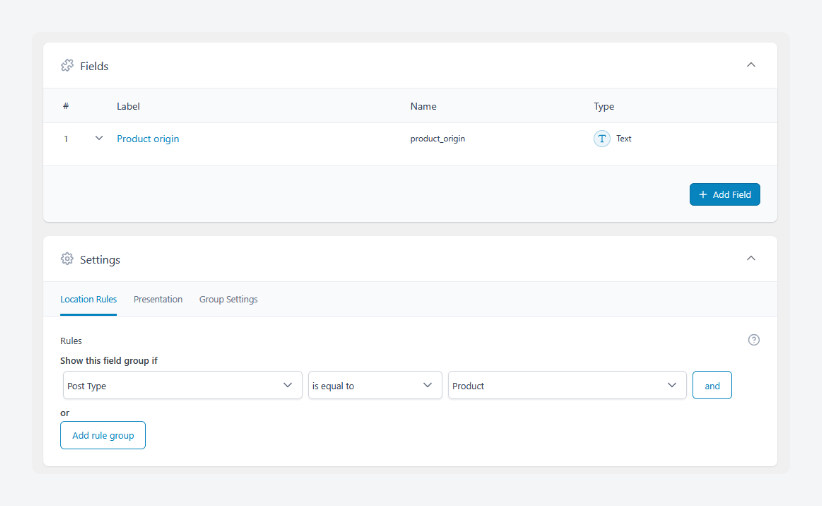
On the ACF side, you can use any custom fields you’ve set up. For this walkthrough, we’ll focus on a practical example: custom fields linked to WooCommerce products – specifically, a custom field for Product Origin. Using location rules, these fields are assigned where Post Type is equal to Product.
Here are the field settings we’ll be working with:
Step 2: Creating columns for ACF data
With Admin Columns Pro ready and your ACF fields identified, the next step is creating the columns that will display your custom data in the WordPress admin lists:
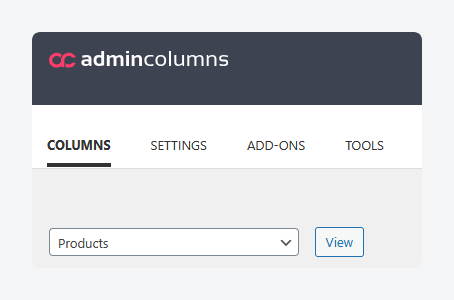
- From the admin dashboard, go to Settings > Admin Columns.
- In the Columns tab, select Products from the dropdown.
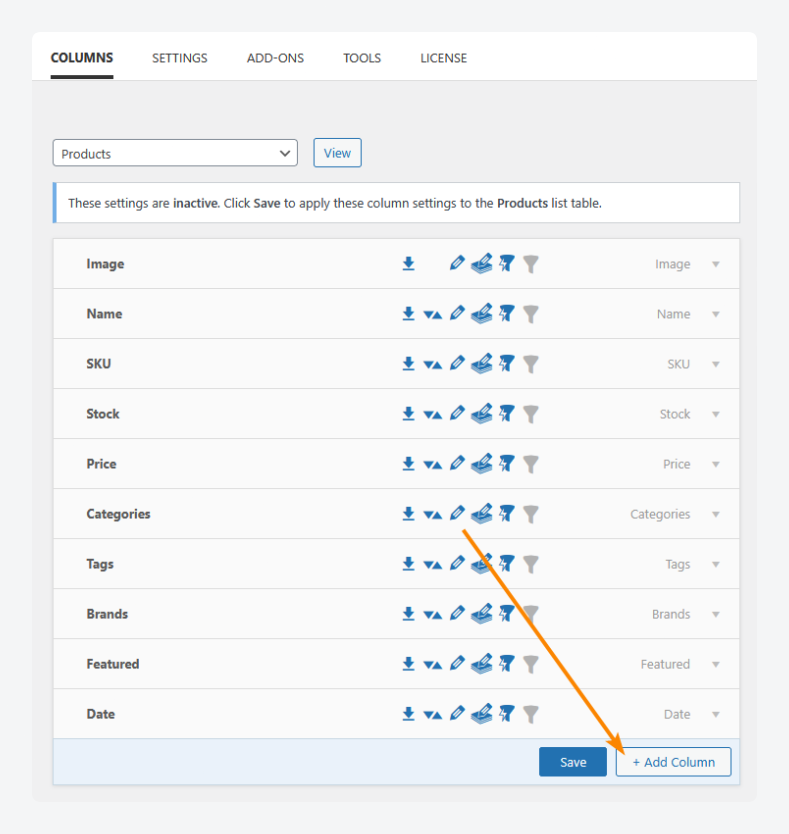
- Scroll down and click the + Add Column button below the list.
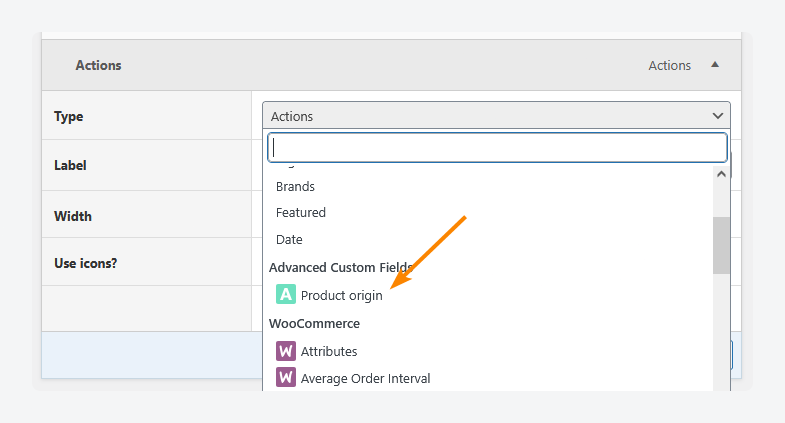
- From the Type dropdown, scroll to the Advanced Custom Fields section and select your custom field. In this case, it’s Product origin.
- This will bring up the column’s settings. The default should be good, note that Bulk Editing is enabled for the column.
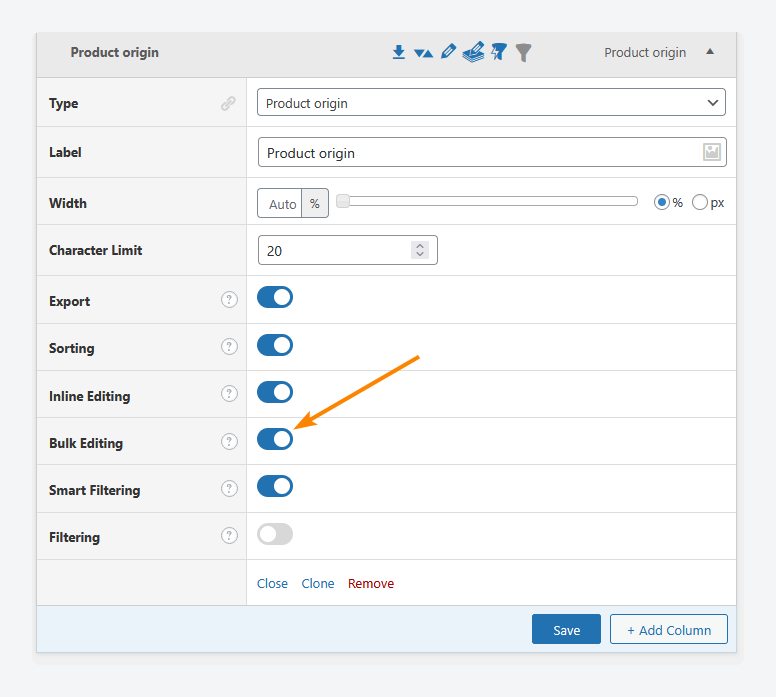
- Click Save.
- Drag the new column around so it appears closer to where you want it, rather than off to the right. We’re going to place it between the Name and SKU columns so it’s easier to access.
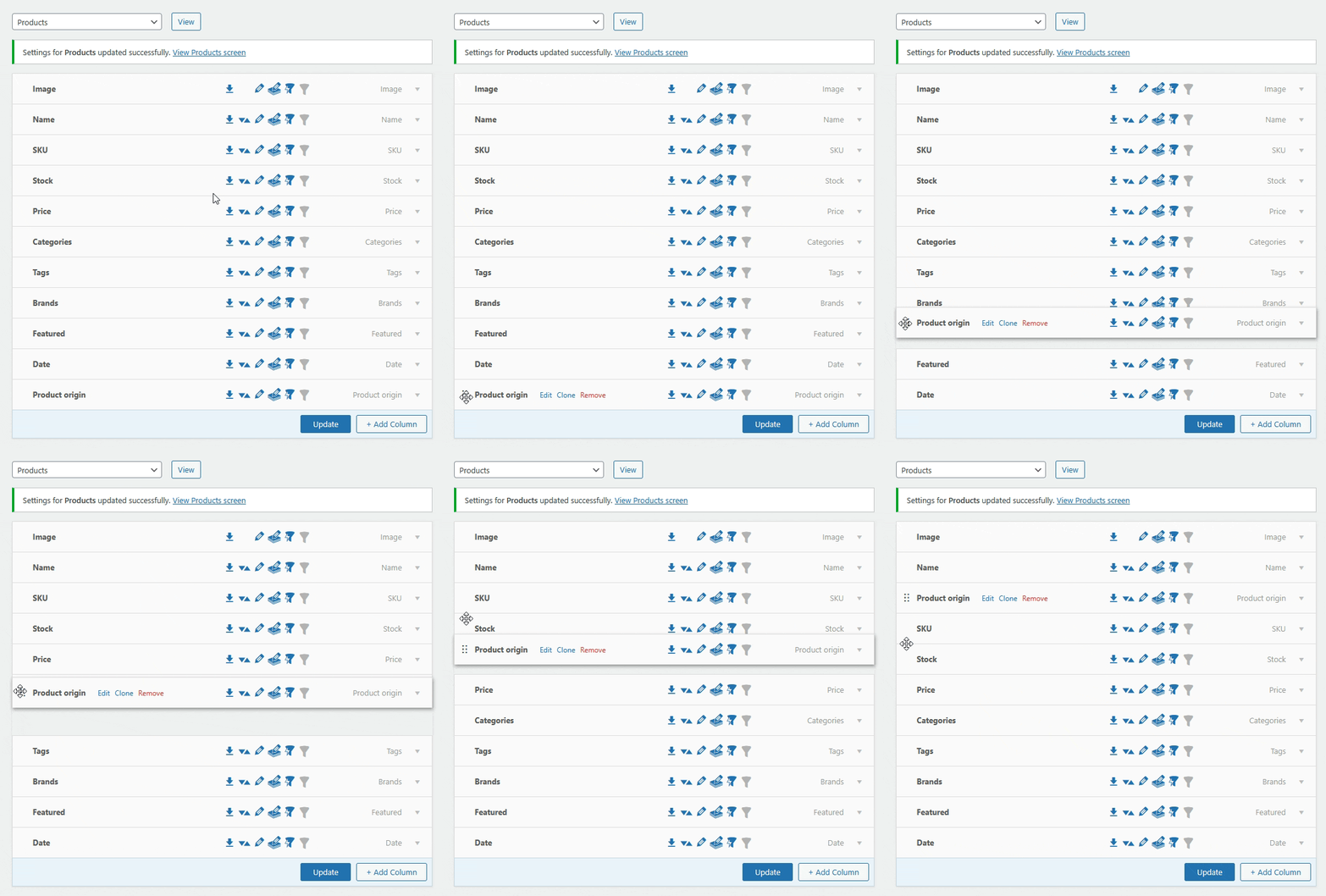
- Click Update to save your settings.
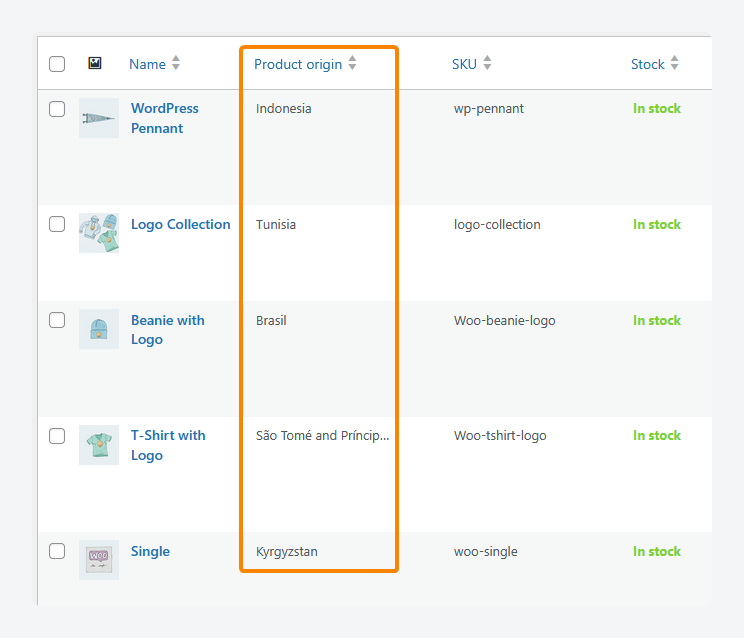
- View your products on the backend and confirm that your custom field data column shows.
Step 3: Bulk editing ACF field columns
Once your ACF columns are set up in the admin list, all that’s left is bulk editing those fields directly from the column interface:
- Use the checkboxes to select the items you want to edit. The bulk editing option will remain hidden until you do this.
- Click Bulk Edit under the column whose data you want to update.
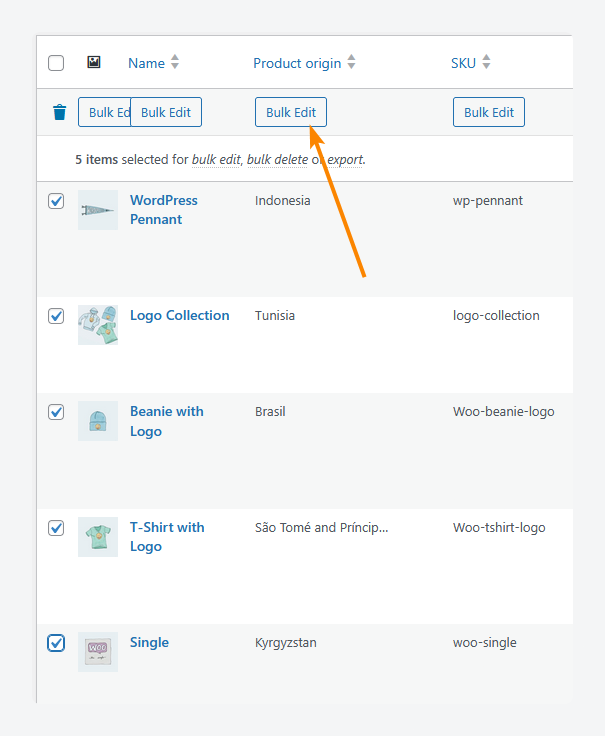
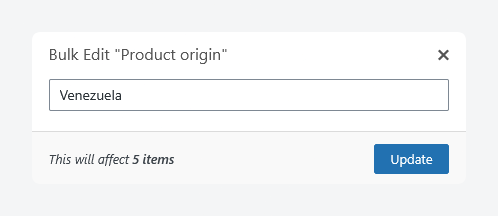
- Enter the new value, click Update, then confirm the operation.
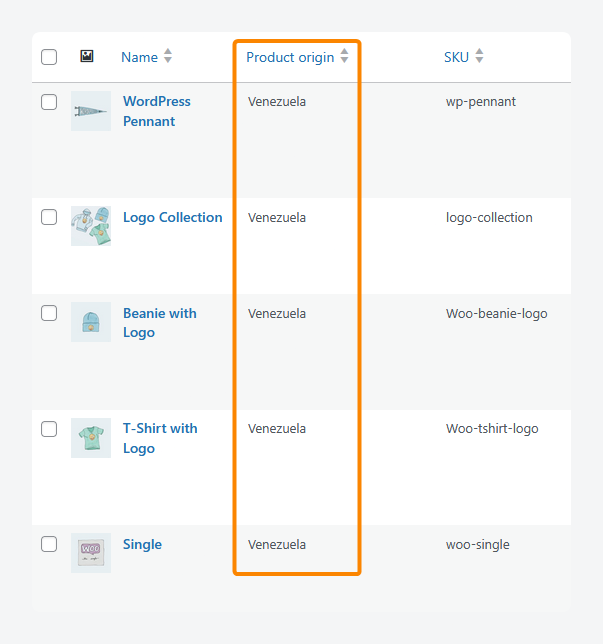
- Check that the data has been updated.
Bulk edit ACF fields fast with Admin Columns
When faced with the task of updating dozens or hundreds of entries, the difference between clicking through each post one by one and executing a bulk update can feel like night and day.
Manual bulk editing via SQL requires a deep understanding of serialized ACF data and a steady nerve; one misstep and your site’s integrity can be compromised. For most, that’s a risk not worth taking.
Admin Columns offers a user-friendly, no-code alternative that puts bulk editing within easy reach. With its ACF integration, you gain clear visibility of your custom fields and can update them directly from the admin list. It’s efficient, it’s safer, and it’s designed for the realities of managing large content volumes without losing your mind.
Of course, regardless of the method you choose, backing up your database beforehand remains a must; It’s your safety net when diving into bulk updates.
To harness the full power of custom fields, explore ACF PRO today for smarter, more practical content structures. And, when you’re ready to start handling this data at scale, with bulk editing, filtering, sorting, and exporting, check out what Admin Columns Pro can do for you.



For plugin support, please contact our support team directly, as comments aren't actively monitored.