
Key points:
- Required fields have two separate layers: the indicator and the enforcement.
- Asterisks can display even when empty submissions still go through.
- Form builders suit simple forms, while registration and publishing need separate enforcement approaches.
- Advanced Custom Fields (ACF®) adds non-bypassable server-side validation and conditional rules for guaranteed enforcement.
- Installation and plugin header requirements are fixed, so this article focuses on flexible form and publishing fields.
Required fields are all over WordPress, but most of them – like on the site installation screen or in plugin headers – are baked into Core and just work. You never really have to think about them.
Where things get interesting is in the stuff you control, i.e., content publishing workflows and user-facing forms. If you’re tightening up an editorial process for a client or building out a frontend submission form, the responsibility falls squarely on you.
Most “required field” problems come down to a misconception about what the asterisk next to a field label does. Unfortunately, it’s just a visual indicator.
It has no connection to whether WordPress actually blocks submission when that field is empty. These are separate systems, and they fail independently.
We’ll go over how form builders, registration plugins, and publishing workflows handle required fields. After this, we’ll show how Advanced Custom Fields (ACF®) enforces validation server-side when you need guarantees.
How required fields work in WordPress
Required fields appear in four contexts:
- Site installation requires fields like site title, username, password, and email. These requirements are enforced by WordPress core with mandatory server-side validation.
- Content publishing expects a title and content by default. Any additional required fields must be added and enforced through plugins or custom logic.
- User-facing forms define required fields such as name, email, phone, or message via themes or form plugins. They often rely on client-side validation unless server-side checks are implemented.
- Plugin headers require metadata like the plugin name to be present for WordPress to load the plugin.
The flexible contexts are content publishing and user-facing forms. Publishing expects a title and content by default. Any additional requirements need plugins or custom code. Forms built with themes or plugins define their own required fields. They typically rely on client-side validation unless you add server-side checks.
In all cases, the asterisk is a visual indicator only.
WordPress 6.1 introduced wp_required_field_indicator() and wp_required_field_message() to standardize the markup. These functions output the asterisk and explanatory text like “Required fields are marked *” in a consistent format that screen readers can announce properly. They improved accessibility, but not enforcement.
Backend admin validation and frontend form validation run on entirely separate systems.
The two parts of required fields in WordPress
Required fields have two distinct components: indicators and enforcement.
Indicators are visual cues. Think the asterisk next to a label, the “required” text below a form, the red border on an empty input. They tell users a field needs a value.
Enforcement is validation logic. Code that checks whether the field has a value and blocks form submission if it doesn’t.
These two parts operate independently. A field can display an asterisk while still accepting empty submissions. The indicator exists in your HTML and CSS. The enforcement exists in JavaScript or PHP. Neither one implies the other.
Why WordPress required fields fail
If a field shows an asterisk but still accepts empty submissions, the reason is usually structural.
The asterisk is markup.
It might be a CSS pseudo-element, an HTML span, or a character in the label text. On its own, it does nothing. Form plugins add these indicators, then rely on separate validation handlers to enforce the requirement.
That separation creates failure points. A JavaScript error on your page can prevent the validation script from running. A caching plugin might serve an outdated version of the form without the current scripts. A plugin conflict could cause hooks to fire in the wrong order or not at all.
When validation breaks, it often does so silently, with no error message.
The form submits normally because nothing actually blocked it. But the asterisk stays visible, promising enforcement that isn’t happening.
Client-side validation vs server-side enforcement
Browser validation uses the HTML5 required attribute. It’s fast and gives immediate feedback, but users can bypass it by disabling JavaScript or editing the HTML through browser dev tools.
Plugin-based JavaScript validation adds inline error messages and custom logic. It works until something breaks. A script error or plugin conflict can disable it without warning.
Server-side validation runs in PHP on your server. Users cannot bypass it regardless of what they do in their browser.
Client-side validation improves user experience. Server-side enforcement provides security. You need both, but only server-side validation guarantees a required field actually blocks submission.
Adding server-side validation without a plugin
If you’re not using a form plugin or ACF, you can validate directly with WordPress hooks. For publishing workflows, the wp_insert_post_data filter lets you check field values before a post saves:
add_filter( 'wp_insert_post_data', function ( $data, $postarr ) {
    if ( empty( $postarr['_my_custom_field'] ) && $data['post_status'] === 'publish' ) {
        $data['post_status'] = 'draft';
        add_filter( 'redirect_post_location', function ( $location ) {
            return add_query_arg( 'custom_error', 'missing_field', $location );
        });
    }
    return $data;
}, 10, 2 );
This reverts the post to draft and adds a query parameter you can use to display an admin notice. It’s bare-bones, but it runs server-side and can’t be bypassed from the browser.
Supercharge Your Website With Premium Features Using ACF PRO
Speed up your workflow and unlock features to better develop websites using ACF Blocks and Options Pages, with the Flexible Content, Repeater, Clone, Gallery Fields & More.
Setting required fields in form builders
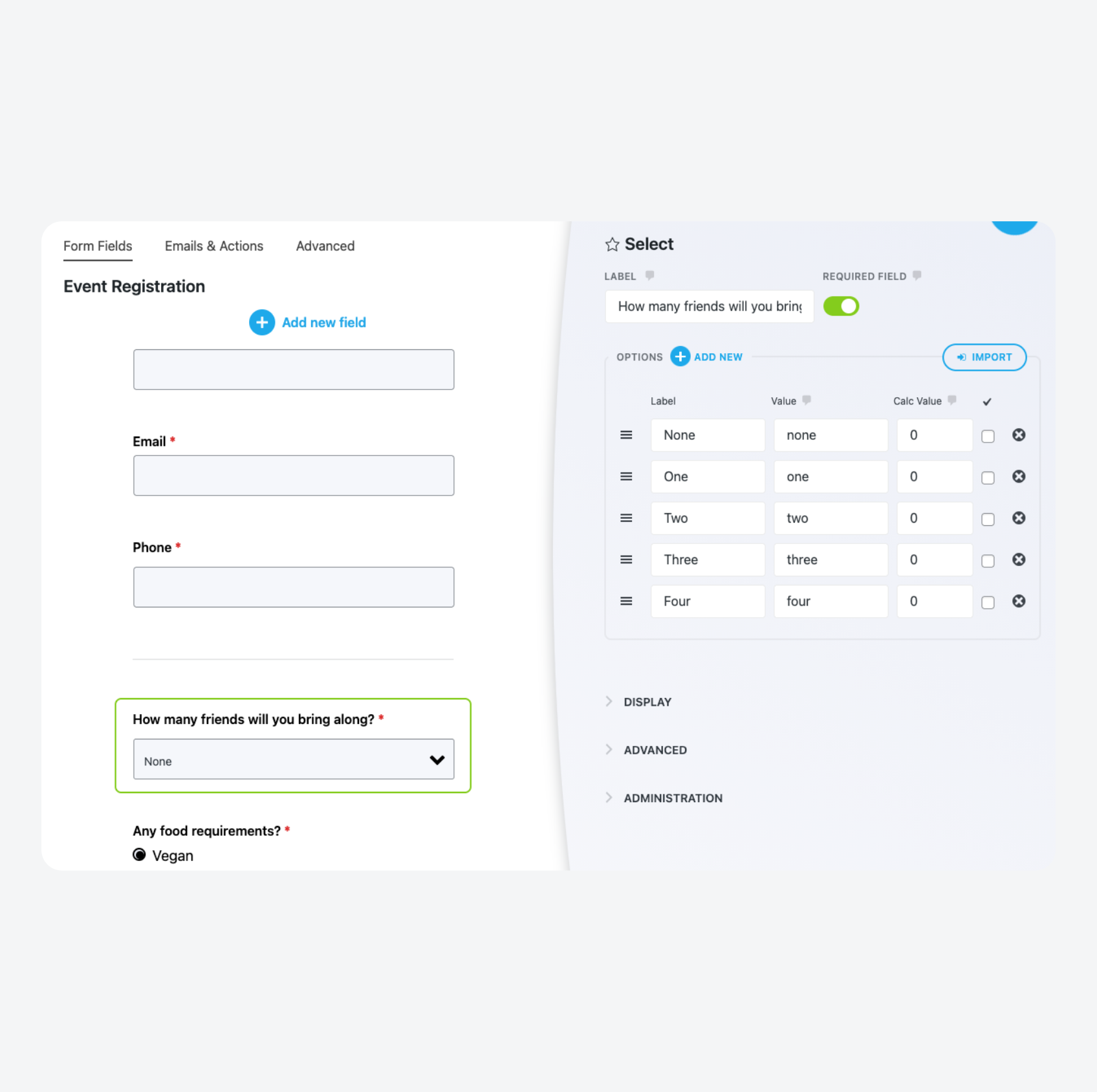
Most form plugins make fields required through a toggle in the field settings panel. Plugins like Gravity Forms, WPForms, and Ninja Forms both use this approach. Open the field options, flip the Required switch, and the plugin adds an asterisk to the label and enables client-side validation.
You can see this below in Ninja Forms, with the toggle on the top right and the asterisks next to the field labels.
Contact Form 7 takes a different approach. There’s no toggle. Instead, you add an asterisk to the field tag in your form template. Writing instead of makes that field required.
The block editor’s built-in form blocks use a toolbar icon. Select a field block and click the asterisk icon to mark it required.
In all these cases, the toggle or marker typically enables two things at once:
- The visual indicator.
- Client-side JavaScript validation.
When a user tries to submit with a required field empty, the plugin displays an inline error message and prevents submission.
Common fields to mark required include name, email, phone number, message content, and GDPR consent checkboxes. The GDPR checkbox matters for compliance. Without it marked required, users can submit forms without explicitly consenting to your data processing terms.
Setting required fields in publishing workflows
Form builders handle user-facing contact and inquiry forms. Registration and publishing workflows operate differently and have their own enforcement methods.
User registration in WordPress requires an email address by default. WordPress core enforces this because email handles account activation and password recovery. The username field is also required. Beyond these defaults, adding required fields to registration means using a plugin or custom code.
RegistrationMagic and similar registration plugins let you add custom fields with required toggles in the field settings. This works like form builders: select the field, enable the Required option, and the plugin adds both the indicator and validation.
Checkbox fields are particularly useful here for GDPR compliance. Marking a terms acceptance checkbox as required prevents registration until users explicitly consent.
Content publishing has minimal requirements out of the box. WordPress expects a title and content, but it won’t stop you from publishing a post without a category, tags, or featured image. For editorial workflows that need stricter standards, the Required Fields plugin adds validation rules. You can require posts to have an assigned category, at least one tag, or a featured image before publishing.
Just stay cautious of how solutions built for the classic editor frequently break in Gutenberg. The block editor uses a different JavaScript architecture, and validation hooks that worked before may not fire at all. Before committing to any publishing workflow plugin, confirm it explicitly supports the editor you use.
Testing whether a required field blocks submission
Testing validation requires more than watching for an error message. Most modern forms handle client-side checks and may even disable the submit button until all required fields are completed.
If you’re using a fully custom build, though, follow these steps to test for server-side validation:
- Submit the form with the required field empty. An error message should appear and the page should not redirect or display a success state. This confirms the indicator is connected to at least some validation logic.
- Open your browser’s developer tools and go to the Network tab. Submit the form again with the field empty. If client-side validation works, you should see no POST request. If a request goes through, validation failed, and the form data was sent to the server anyway.
- Reload the page with the Network tab still open to clear any cached scripts. Submit once more to rule out stale JavaScript causing a false pass on step two.
- Disable JavaScript entirely in your browser settings and submit the form with the required field empty. If the form submits successfully, you have no server-side validation. Client-side checks are the only barrier, and anyone can bypass them.
Using ACF for server-side required field enforcement
ACF validates on the server. Disabling JavaScript or editing the HTML won’t bypass it. The validation runs in PHP before WordPress saves any data.
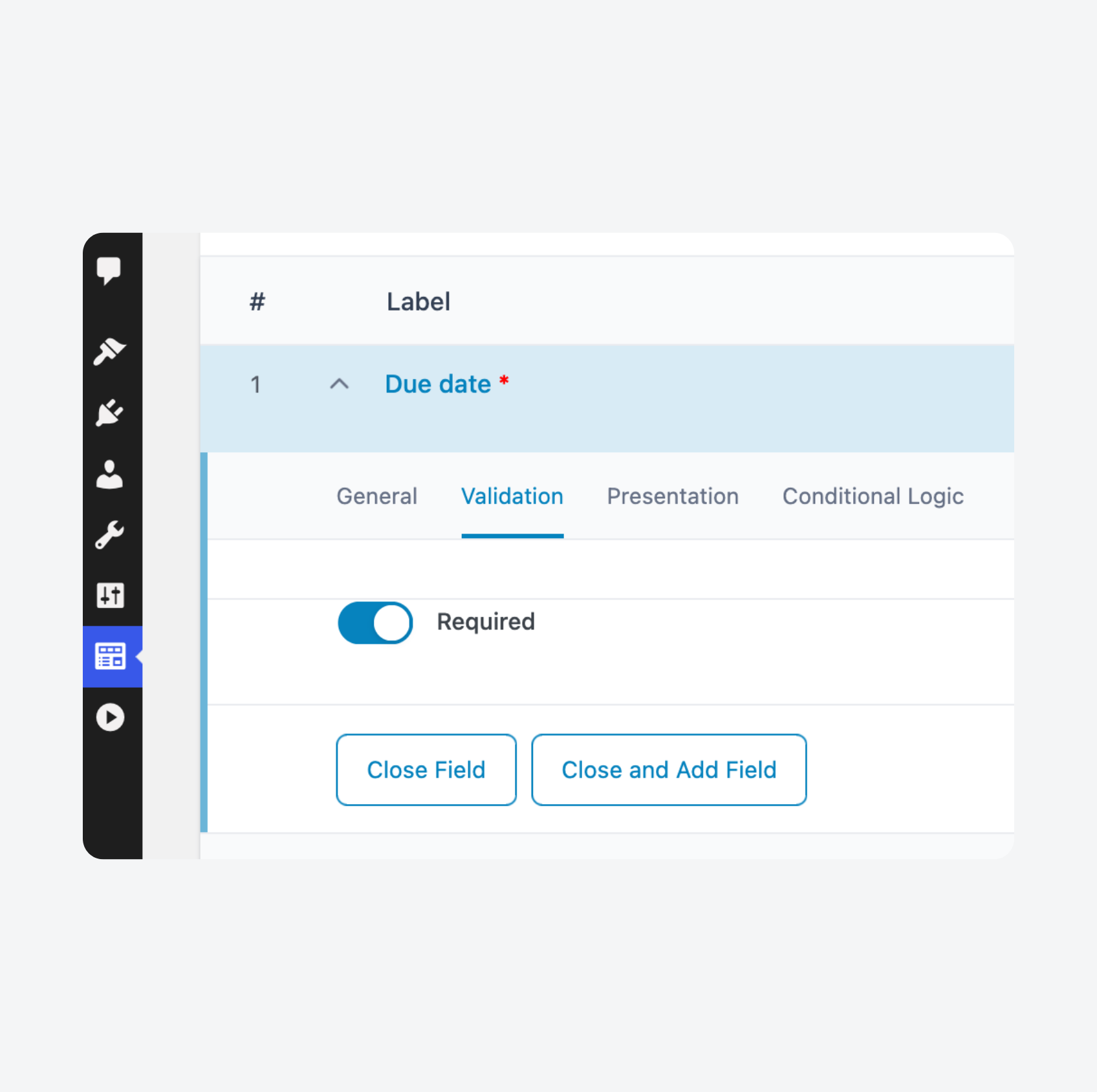
Setting a field as required takes one click. Open the field group, switch to the field’s Validation tab, and toggle Required on.
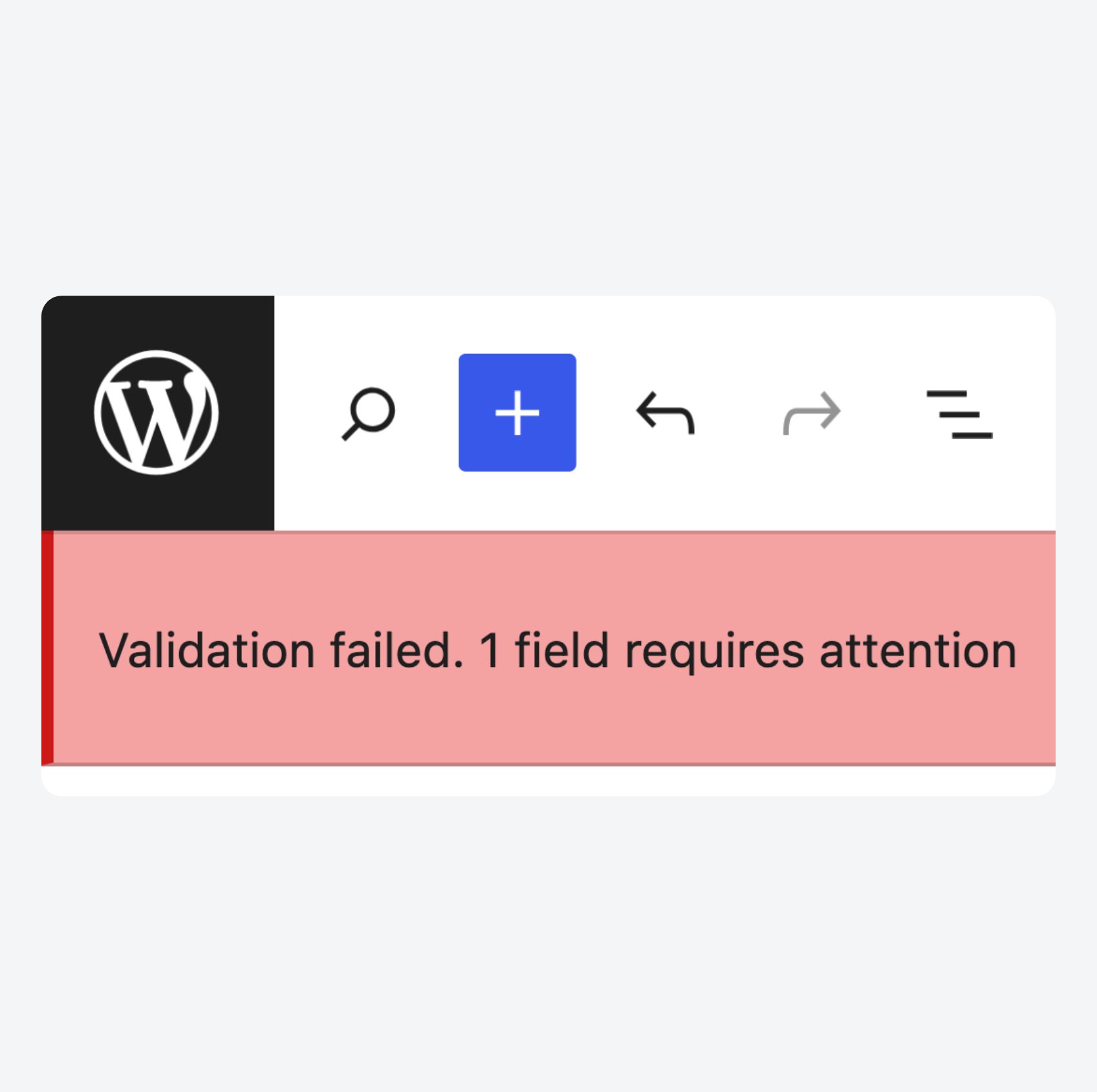
ACF then blocks form submission if that field is empty, displaying an error message at the top of the form.
ACF also supports conditional logic. You can make field B required only when field A has a specific value. This keeps forms lean by hiding and de-requiring fields that don’t apply to a given context.
Validation works across multiple environments. Admin screens, frontend forms built with acf_form(), and REST API submissions all run through the same server-side checks.
ACF PRO also uses block validation for ACF Blocks. If a block contains required fields, WordPress prevents saving the post until those fields have values. This brings the same enforcement model from above into the block editor.
For validation logic beyond empty checks, use the acf/validate_value filter. You can validate formats, check against external data, compare field values, or run any custom PHP logic. The filter receives the field value, and returning an error string blocks submission.
Supercharge Your Website With Premium Features Using ACF PRO
Speed up your workflow and unlock features to better develop websites using ACF Blocks and Options Pages, with the Flexible Content, Repeater, Clone, Gallery Fields & More.
Frontend validation and the acf_form_head() requirement
Building frontend forms with ACF requires calling acf_form_head() before any output. Place this call at the top of your template file, before get_header():
<?php
acf_form_head();
get_header();
?>
The function loads the necessary scripts, styles, and validation handlers.
Missing this call is a common mistake. The form renders and looks correct, but validation fails silently. Users submit empty required fields and the data saves without any error. The form appears broken even though the field group settings are configured correctly.
Place acf_form() in your template where the form should appear:
<?php acf_form(); ?>This function outputs the form HTML based on your field group configuration.
When a user submits a frontend form, ACF validates the data server-side and redisplays the form with inline error messages if any required fields are empty. The page doesn’t redirect until validation passes.
Diagnosing common required field failures
Required field validation fails in predictable ways. The symptoms often look identical – forms submitting when they shouldn’t – but the causes vary. Work through these checks before throwing in the towel:
- Frontend ACF forms accept empty required fields when
acf_form_head()is missing, because the function loads the validation handlers that process submissions. Addacf_form_head()beforeget_header()in your template file. - Disabled or readonly fields submit empty values because browsers exclude them from form data entirely. Use a hidden field to store the actual value alongside a visual-only display element.
- Forms with many fields fail validation and throw nonce errors when PHP’s
max_input_varssetting is too low, truncating submitted data mid-request. Increasemax_input_varsin your php.ini or .htaccess file to accommodate your largest forms. - Client-side validation stops working when unrelated JavaScript errors on the page prevent validation scripts from executing. Check the browser console for errors and ensure server-side validation exists as a fallback.
- Caching plugins serve outdated form markup and stale scripts, breaking validation you’ve recently updated or fixed. Exclude form pages from caching or clear the cache after any changes to form configuration.
- Validation hooks fire at the wrong time when filter priorities conflict with other plugins modifying the same hooks. Adjust the priority argument in your
add_filter()call to control execution order, using a higher number to run later or a lower number to run earlier.
Move beyond asterisks with ACF’s required field validation
Required field indicators and enforcement are separate systems that fail independently. An asterisk can display while validation breaks unnoticed in the background.
For contact forms and basic registration flows, form builder toggles work fine. They enable both the indicator and client-side validation with a single setting, and that covers most use cases.
Problems surface when you need conditional logic or absolute certainty that validation cannot be bypassed. Client-side JavaScript isn’t enough. You need server-side enforcement that runs regardless of what happens in the browser.
ACF closes that gap with required fields that validate in PHP before data saves. Conditional rules adapt requirements based on other field values. The same validation runs in admin screens, frontend forms, and REST API requests.
Start with form builders for simple use cases. When your requirements outgrow them, download ACF and build forms that enforce what they promise.




For plugin support, please contact our support team directly, as comments aren't actively monitored.