Overview
Block bindings allow you to connect WordPress block attributes to ACF field values. Instead of hardcoding content in a Heading, Paragraph, Image, or Button block, you can bind the block’s content to an ACF field. When the field value changes, the bound block content updates automatically.
ACF 6.8.1 introduces full support for WordPress’s Block Bindings API, including integration with the editor’s Attributes panel UI and live preview with in-place editing.
Requirements
- ACF PRO 6.8.1 or later
- WordPress 6.7 or later
- The ACF datastore enabled
Enabling Block Bindings
Block bindings require two things to be enabled:
1. Enable the Datastore
Add this filter to your theme or plugin:
add_filter( 'acf/settings/enable_datastore', '__return_true' );
See acf/settings/enable_datastore for more options.
2. Enable Fields for Bindings
For each field you want to use with block bindings, enable “Allow Access to Value in Editor UI” in the field settings:
- Edit your field group
- Select the field you want to expose
- Go to the Presentation tab
- Enable “Allow Access to Value in Editor UI”
- Save the field group
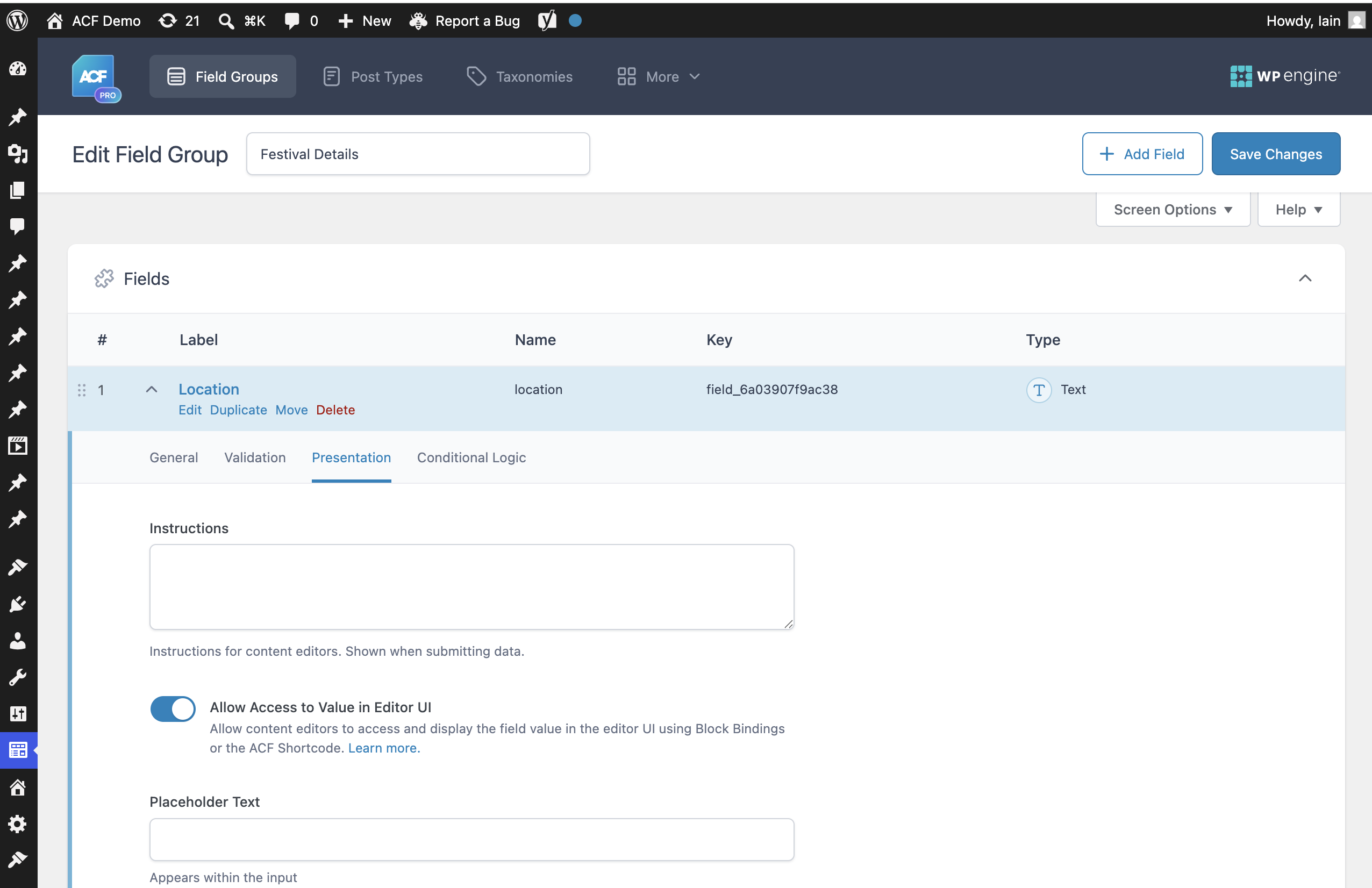
Only fields with this setting enabled will appear in the Block Bindings UI.
Using Block Bindings in the Editor
Once enabled, you can bind blocks to ACF fields directly in the editor using WordPress’s Attributes panel.
Supported Blocks
The following core blocks support attribute bindings:
- Heading – content attribute
- Paragraph – content attribute
- Image – url, alt, and title attributes
- Button – text and url attributes
Binding a Block
- Add or select a supported block (e.g., Heading)
- Open the block settings sidebar
- Look for the “Attributes” panel
- Click the attribute you want to bind (e.g., “Content”)
- Select “ACF Field” as the source
- Choose from your available ACF fields
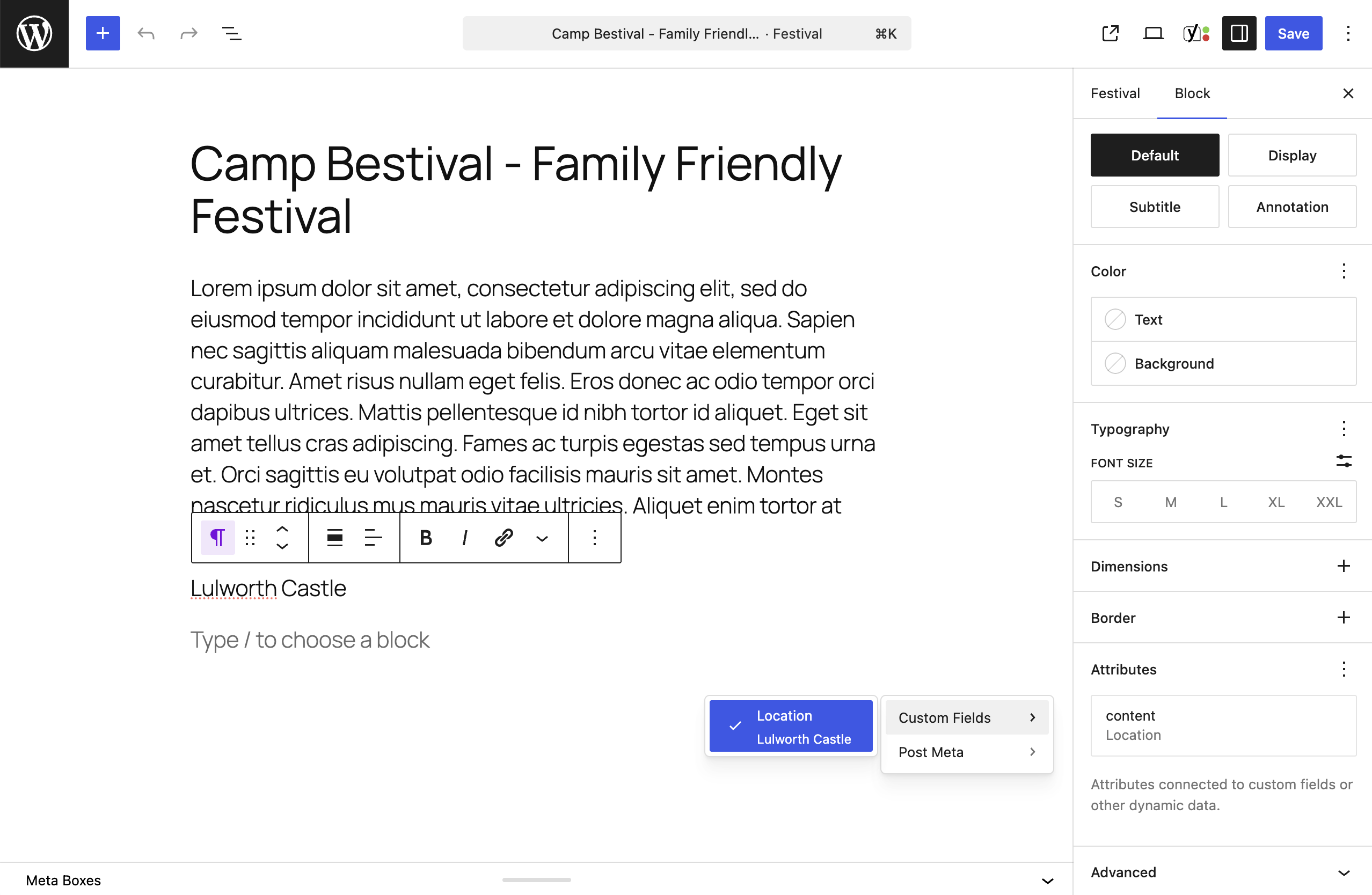
The block will now display the ACF field value, and updates to the field will reflect in the block.
Live Preview and Editing
When block bindings are enabled with the datastore, you get live preview and in-place editing:
- Real-time updates – Changes to ACF fields immediately update bound blocks in the editor
- In-place editing – Click on a bound block and edit its content directly
- Bidirectional sync – Edits made in the block sync back to the ACF field
This creates a seamless editing experience where bound blocks behave like native Gutenberg content while remaining powered by your ACF field values.
Supported Field Types
Block bindings work with field types that return simple values compatible with block attributes:
| Field Type | Supported | Notes |
|---|---|---|
| Text | Yes | |
| Textarea | Yes | |
| Number | Yes | Converted to string |
| Yes | ||
| URL | Yes | |
| Password | Yes | |
| Select | Yes | Single value only |
| Radio Button | Yes | |
| True/False | Yes | Returns “true” or “false” |
| Date Picker | Yes | |
| Time Picker | Yes | |
| Color Picker | Yes | |
| Image | Yes | Returns URL for image bindings |
| File | Yes | Returns URL |
Unsupported Field Types
Complex field types that return arrays or objects are not supported:
- Repeater
- Flexible Content
- Gallery
- Group (as a whole, but sub-fields can be bound)
- Relationship (returns array of IDs)
- Post Object (when set to return multiple)
- Checkbox (returns array)
Value Formatting
Bound values are formatted for display in blocks:
| Value Type | Display |
|---|---|
| Strings | Displayed as-is |
| Numbers | Converted to string |
| Booleans | “true” or “false” |
| Arrays of scalars | Joined with “, “ |
| Objects/nested arrays | Empty string |
Programmatic Bindings
You can also create bindings in code using the Block Bindings API.
In Block Markup
Add bindings to a block’s metadata:
<!-- wp:heading {"metadata":{"bindings":{"content":{"source":"acf/field","args":{"key":"page_title"}}}}} -->
<h2 class="wp-block-heading"></h2>
<!-- /wp:heading -->
In PHP Templates
<?php
$block_content = '<!-- wp:paragraph {"metadata":{"bindings":{"content":{"source":"acf/field","args":{"key":"intro_text"}}}}} --><p></p><!-- /wp:paragraph -->';
echo do_blocks( $block_content );
?>
Image Bindings
Bind an image block to an ACF Image field:
<!-- wp:image {"metadata":{"bindings":{"url":{"source":"acf/field","args":{"key":"featured_photo"}},"alt":{"source":"acf/field","args":{"key":"featured_photo_alt"}}}}} -->
<figure class="wp-block-image"><img src="" alt=""/></figure>
<!-- /wp:image -->
Button Bindings
Bind a button’s text and URL:
<!-- wp:button {"metadata":{"bindings":{"text":{"source":"acf/field","args":{"key":"cta_text"}},"url":{"source":"acf/field","args":{"key":"cta_url"}}}}} -->
<div class="wp-block-button"><a class="wp-block-button__link"></a></div>
<!-- /wp:button -->
Disabling Bindings for Specific Fields
To prevent a field from being used in bindings, you can:
In the Admin UI
Disable “Allow Access to Value in Editor UI” in the field’s Presentation tab.
In Code
Set allow_in_bindings to false when registering the field:
acf_add_local_field( array(
    'key'               => 'field_my_field',
    'name'              => 'my_field',
    'type'              => 'text',
    'allow_in_bindings' => false,
) );
Or in a JSON field group:
{
    "key": "field_my_field",
    "name": "my_field",
    "type": "text",
    "allow_in_bindings": false
}
Troubleshooting
Fields Not Appearing in Attributes Panel
- Verify the datastore is enabled (
acf/settings/enable_datastorefilter returnstrue) - Check that “Allow Access to Value in Editor UI” is enabled for the field
- Confirm you’re using WordPress 6.7 or later
- Ensure the field type is supported (see table above)
Bound Content Not Updating
- Check the browser console for JavaScript errors
- Verify the field has a saved value
- Try refreshing the editor
Bindings Work in Editor but Not on Frontend
Server-side rendering should work regardless of datastore settings. If bound content isn’t appearing on the frontend:
- Check that the field has a value for the current post
- Verify the field key in the binding matches your field
Related
- Using the ACF Datastore – Full guide to the datastore feature
- WordPress Block Bindings API – WordPress developer documentation
Supercharge Your Website With Premium Features Using ACF PRO
Speed up your workflow and unlock features to better develop websites using ACF Blocks and Options Pages, with the Flexible Content, Repeater, Clone, Gallery Fields & More.
Related
- Features: Using the ACF Datastore
- Filters: acf/settings/enable_datastore
- Features: Abilities API Integration
- Filters: acf/blocks/top_toolbar_fields
- Functions: acf_register_block_type()