Overview
ACF Blocks make it possible to build custom WordPress® blocks using PHP and Advanced Custom Fields without requiring a full React-based block development workflow.
Developers can create a block, attach an ACF field group to it, and render those field values through a PHP template. Content editors can then add and edit the block directly inside the WordPress Block Editor.
There is one user experience issue, though.
Before an editor adds any field values, the block may have nothing meaningful to render. When the editor browses the block inserter, the visual preview can appear blank or incomplete.
Imagine a custom card block that includes a title and description. The block’s PHP template calls get_field() to retrieve those values, but no real content exists yet. Without example data, WordPress has nothing to show in the block’s inserter preview.
This can become frustrating for content teams working with a large library of custom blocks. Editors may see a block name and icon, but they cannot easily understand what the finished component will look like before inserting it.
That is where the example property in block.json comes in.
By adding temporary ACF field values to example.attributes.data, we can give WordPress realistic sample content for the block’s visual preview.
Stoked! This gives editors a populated preview before they add the block, without saving the example content to the post or displaying it on the frontend.
In this guide, we will cover:
In this guide, we will cover:
- Registering an ACF Block with
block.json - Creating and connecting an ACF field group
- Experiencing the empty preview problem
- Finding the unique ACF field keys
- Adding example ACF values to
block.json - Testing the preview in the block inserter
- Understanding the difference between example data, default values, and placeholder text
Prerequisites
To benefit from this article, you should be familiar with basic WordPress plugin development, ACF field groups, PHP, and the WordPress Block Editor.
You will need:
- A WordPress development site
- ACF PRO with ACF Blocks v3 support
- Access to the site’s
wp-content/pluginsdirectory - A code editor such as VS Code
- Administrator access to WP Admin
For this demo, we will create a small plugin containing an ACF Block called ACF Demo Card.
The block will have two ACF fields:
- Card Title
- Card Text
Before adding example data, its inserter preview will be blank. We will then populate that preview through block.json.
What We Are Building
Before we get into the technical steps, let’s discuss what we are building. We will create a small dynamic block that renders a title and description.
The plugin will have this structure:
acf-block-preview-demo/
├── acf-block-preview-demo.php
└── blocks/
    └── demo-card/
        ├── block.json
        └── render.php
The main plugin file registers the block.
The block.json file defines the block’s metadata and ACF configuration.
The render.php file retrieves the ACF field values and renders the block markup.
Once the block is registered, we will create an ACF field group and attach it to the block.
Setup Steps
1. Create the Demo Plugin
Inside your WordPress site’s code via your code editor, go to:
wp-content/plugins
Create a new folder called:
acf-block-preview-demo
Inside that folder, create:
acf-block-preview-demo.php
Add this code:
<?php
/**
 * Plugin Name: ACF Block Preview Demo
 * Description: A small demo plugin for testing example data in ACF Block previews.
 * Version: 1.0.0
 */

if ( ! defined( 'ABSPATH' ) ) {
    exit;
}

add_action( 'init', function () {
    register_block_type( __DIR__ . '/blocks/demo-card' );
} );
This plugin uses the native WordPress register_block_type() function to register the block from the directory containing its block.json file.
The rest of the block configuration will live inside that JSON file.
2. Create the Block Directory
Inside the plugin, create this directory:
blocks/demo-card
Then create a file called:
block.json
Add this initial configuration:
json
{
    "$schema": "https://schemas.wp.org/trunk/block.json",
    "apiVersion": 3,
    "name": "acf/demo-card",
    "title": "ACF Demo Card",
    "description": "A demo card used to test ACF Block previews.",
    "category": "widgets",
    "icon": "index-card",
    "keywords": ["acf", "card", "preview"],
    "acf": {
        "blockVersion": 3,
        "mode": "preview",
        "renderTemplate": "render.php"
    },
    "supports": {
        "align": false
    }
}
Let’s focus and breakdown the ACF configuration:
json
"acf": {
    "blockVersion": 3,
    "mode": "preview",
    "renderTemplate": "render.php"
}
The blockVersion property enables ACF Blocks v3 for this block.
The mode property tells ACF to initially display the rendered block preview in the editor.
The renderTemplate property points ACF to the PHP file that renders the block.
At this stage, we have not added the example property. We want to experience the empty preview first.
3. Create the Render Template
Inside the same demo-card directory, create:
render.php
Add this code:
<?php
/**
 * ACF Demo Card render template.
 */

$title = get_field( 'card_title' );
$text  = get_field( 'card_text' );
?>

<div <?php echo get_block_wrapper_attributes( [ 'class' => 'acf-demo-card' ] ); ?>>
    <?php if ( $title ) : ?>
        <h2><?php echo esc_html( $title ); ?></h2>
    <?php endif; ?>

    <?php if ( $text ) : ?>
        <p><?php echo esc_html( $text ); ?></p>
    <?php endif; ?>
</div>
This template retrieves the two ACF field values:
$title = get_field( 'card_title' );
$text  = get_field( 'card_text' );
The template only outputs the heading and paragraph when those fields contain values.
That conditional behavior will make the preview problem easy to see. If both fields are empty, the block has almost nothing to render.
4. Activate the Plugin
In WP Admin, go to: Plugins → Installed Plugins
Find ACF Block Preview Demo and click Activate.
Once activated, WordPress will register the block using the metadata in block.json.
You can verify this by opening a post or page, launching the block inserter, and searching for ACF Demo Card.
The block should now appear in the search results.
If it does not appear, check if:
- The plugin is activated
- The file is named exactly named
block.json - The plugin’s registration path points to the directory containing
block.json - The JSON is valid
Create the ACF Field Group
Now that the block exists, we can attach ACF fields to it.
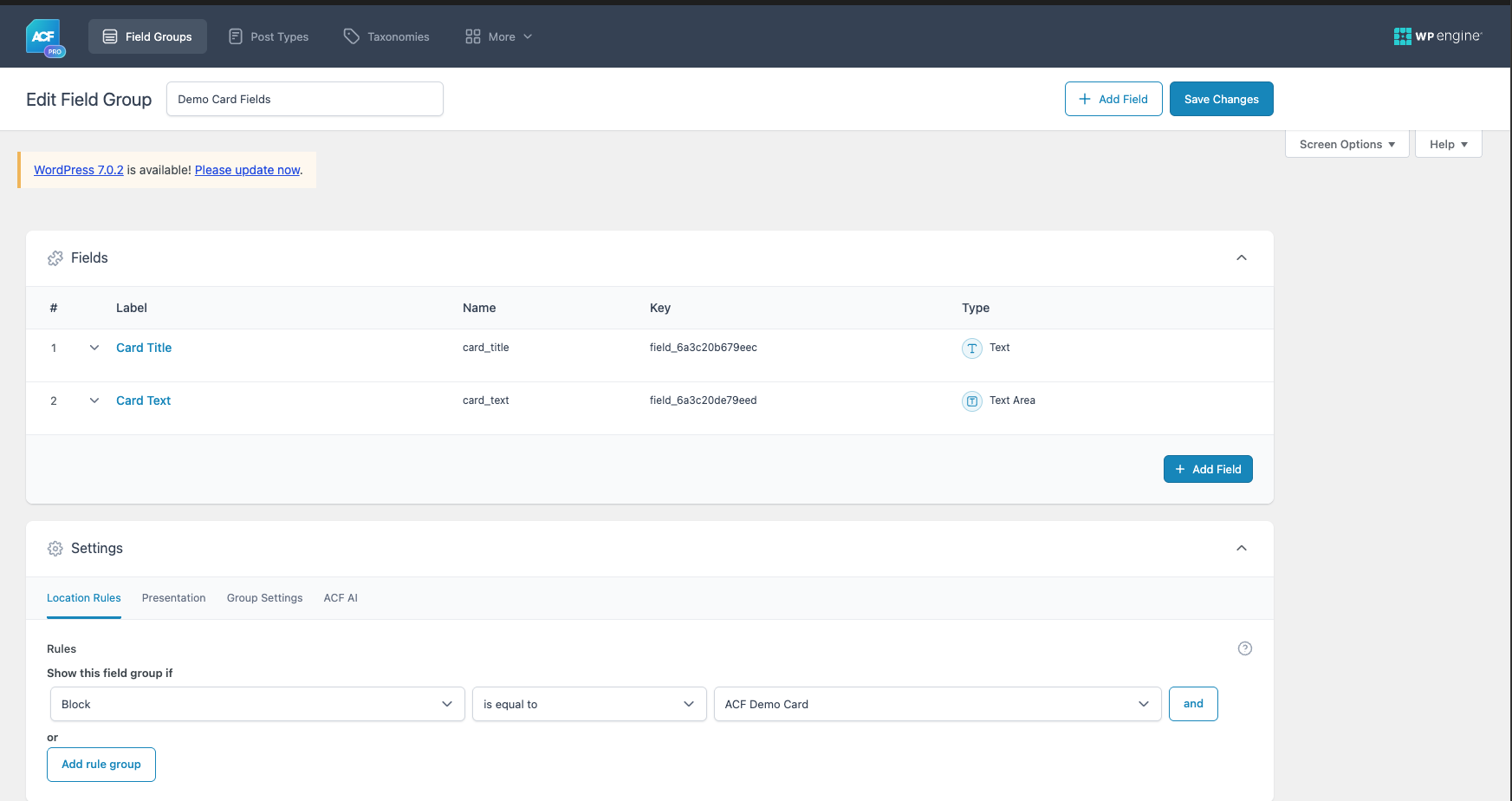
In WP Admin, go to ACF → Field Groups. Click on Add New and name the field group Demo Card Fields.
Add the first field:
Field Label: Card Title
Field Name: card_title
Field Type: Text
Add the second field:
Field Label: Card Text
Field Name: card_text
Field Type: Text Area
Under Location Rules, configure:
Block is equal to ACF Demo Card
Save the field group. This is what it should look like in WP Admin:
Experience the Empty Preview Problem
Now let’s experience the issue from the content editor’s perspective. Open a new page in the WordPress Block Editor. Launch the block inserter and add ACF Demo Card.
Do not enter any field values.
Because card_title and card_text are empty, the PHP template has no visible content to output. The block exists in the editor, but its preview area appears blank.
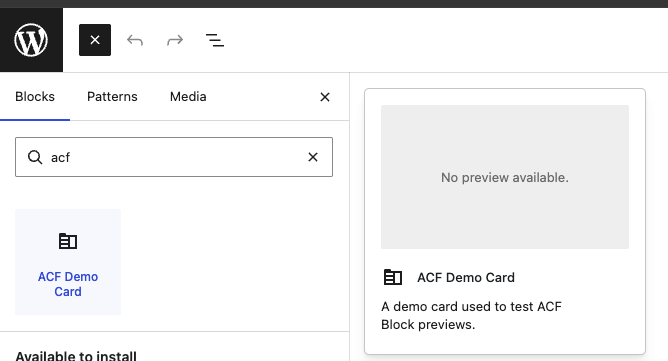
This is the pain point.
The editor can see the block in List View and interact with its toolbar, but the visual canvas does not explain what the component is supposed to look like.
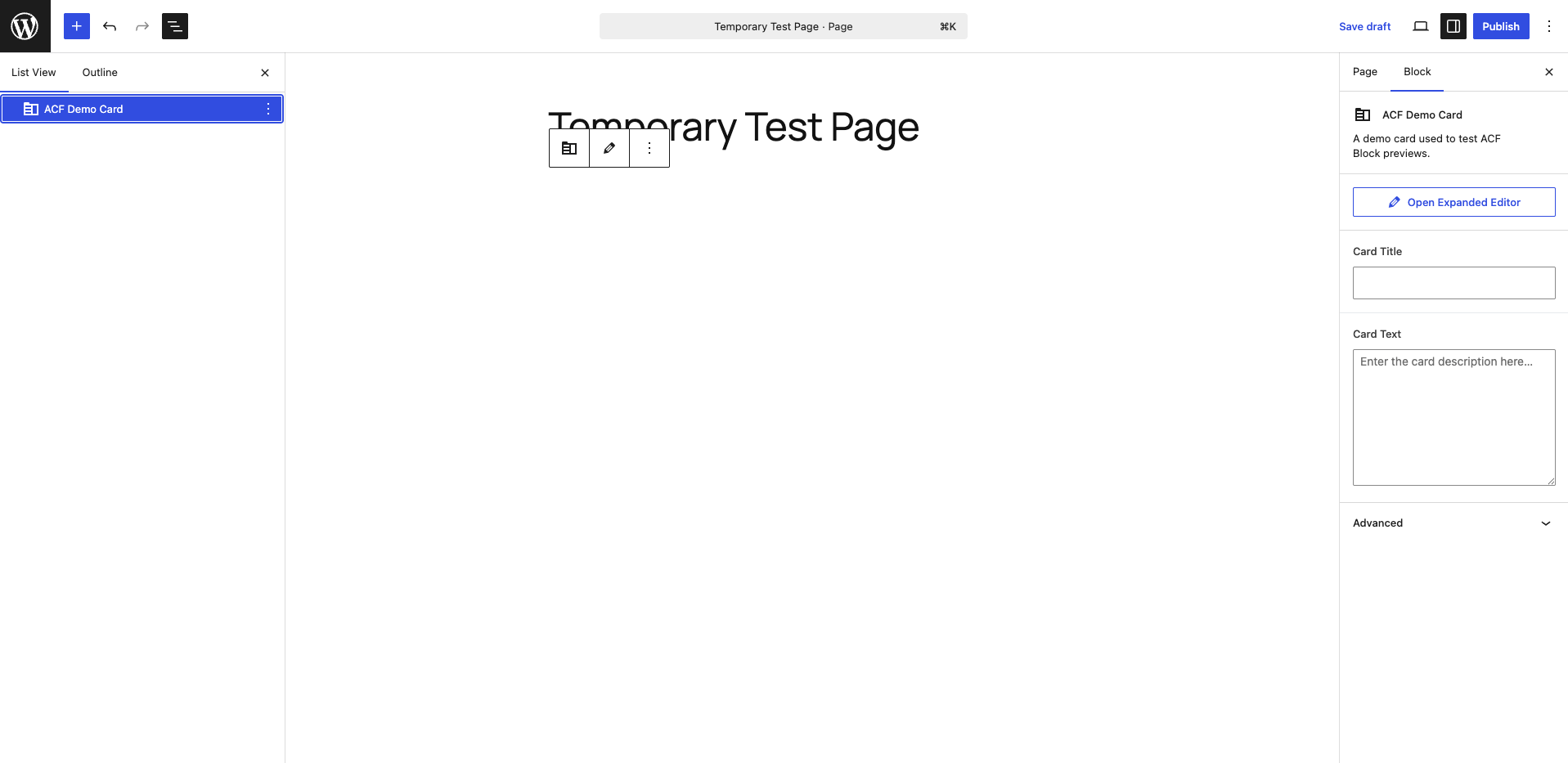
Click the pencil icon in the block toolbar to enter edit mode.
You should now see the ACF form containing Card Title and Card Text:
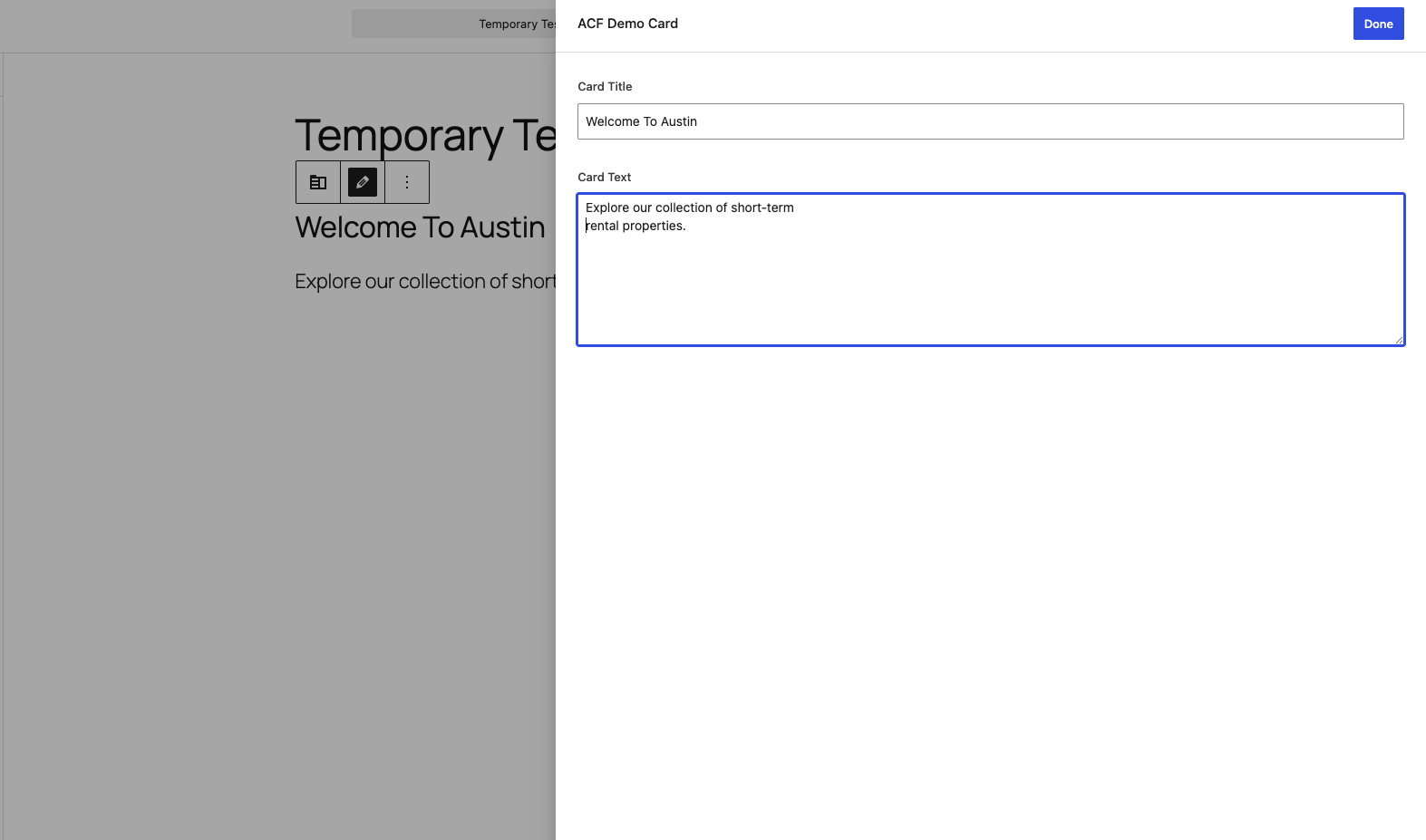
As you can see in the image I entered some real content. After clicking Done, the PHP template now has real values to retrieve. The rendered block appears in the editor now.
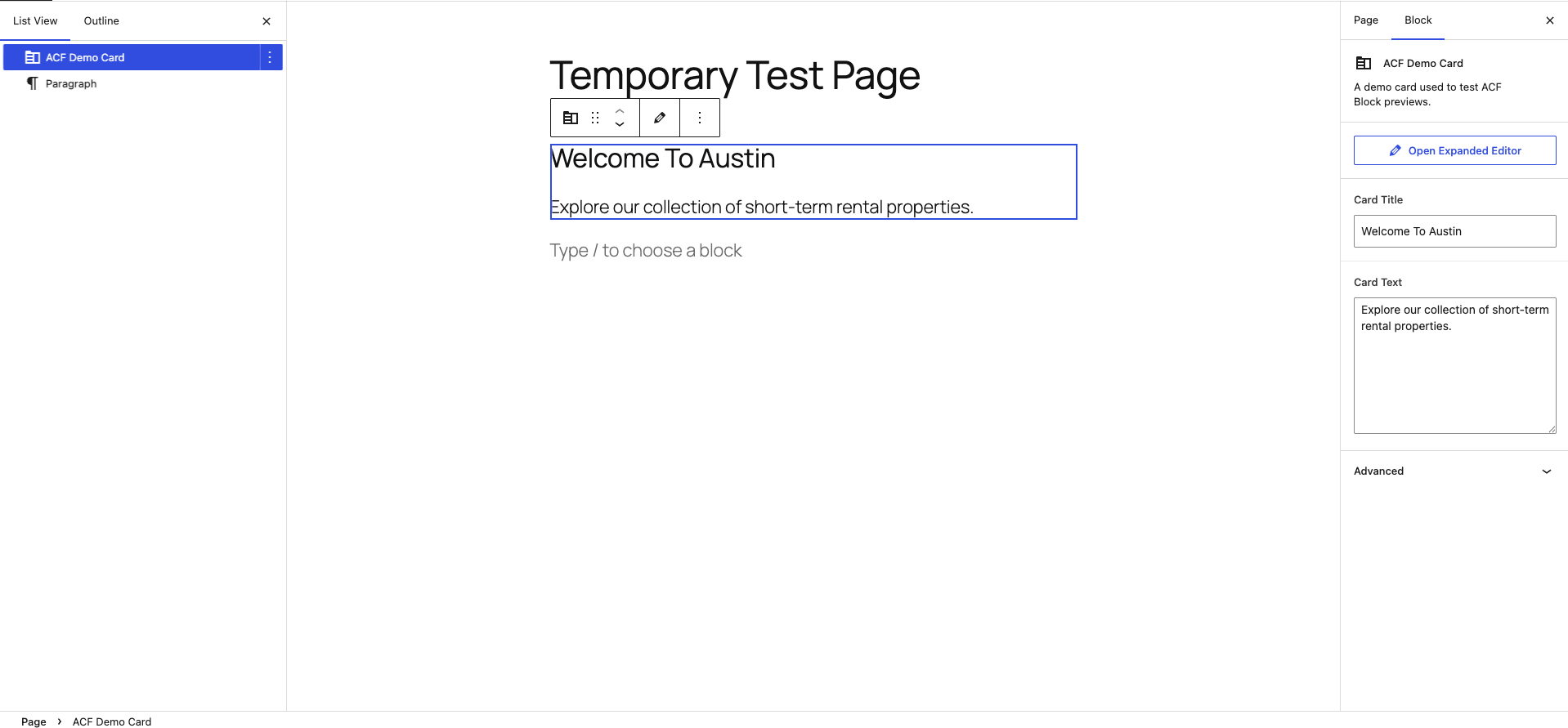
The block works, but the editor had to insert it and add content before seeing a useful visual result. Next, we will solve that problem for the block inserter preview.
Find the ACF Field Keys
To pass example ACF values through block.json, we need the unique ACF field keys. These are not the same as the field names.
Our field names are:
card_title
card_text
The field keys look like:
field_6a3c20b679eec
field_6a3c20de79eed
Each field key is unique to the field created on your site. To find them, go to: ACF → Field Groups → Demo Card Fields
At the top-right of the screen, click Screen Options and enable Field Keys:
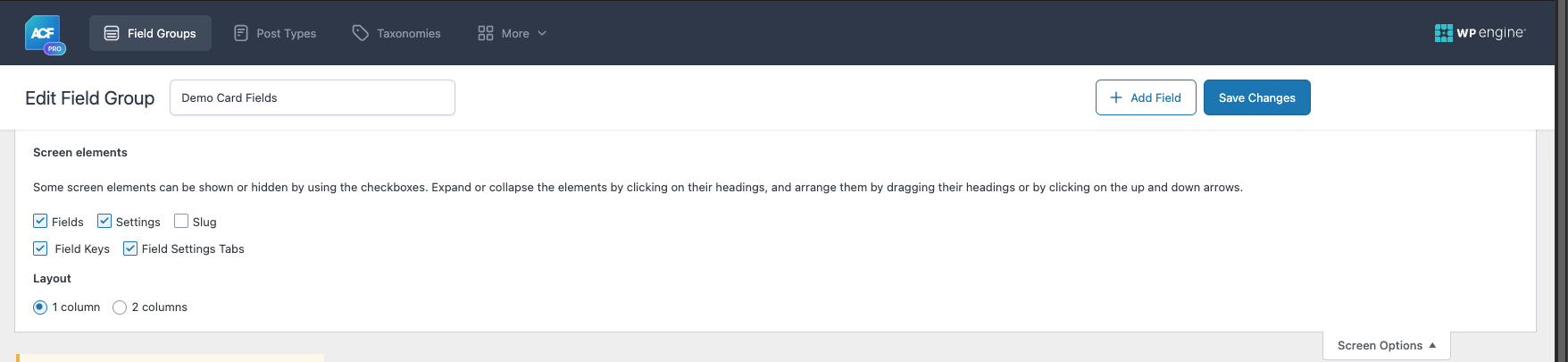
The field keys should now appear alongside each field. For this demo, the keys are:
Card Title:
field_6a3c20b679eec
Card Text:
field_6a3c20de79eed
Your field keys will be different. Copy the values from your own field group and use them in the next step.
Add Example ACF Data to block.json
Open the block’s block.json file again.
Add an example object above the acf configuration:
"example": {
    "attributes": {
        "mode": "preview",
        "data": {
            "field_6a3c20b679eec": "Plan Your Austin Stay",
            "field_6a3c20de79eed": "Browse short-term rentals by neighborhood, amenities, and price."
        }
    }
}
The full block.json file should now look like this:
{
    "$schema": "https://schemas.wp.org/trunk/block.json",
    "apiVersion": 3,
    "name": "acf/demo-card",
    "title": "ACF Demo Card",
    "description": "A demo card used to test ACF Block previews.",
    "category": "widgets",
    "icon": "index-card",
    "keywords": ["acf", "card", "preview"],
    "example": {
        "attributes": {
            "mode": "preview",
            "data": {
                "field_6a3c20b679eec": "Plan Your Austin Stay",
                "field_6a3c20de79eed": "Browse short-term rentals by neighborhood, amenities, and price."
            }
        }
    },
    "acf": {
        "blockVersion": 3,
        "mode": "preview",
        "renderTemplate": "render.php"
    },
    "supports": {
        "align": false
    }
}
Let’s focus on this section:
"data": {
    "field_6a3c20b679eec": "Plan Your Austin Stay",
    "field_6a3c20de79eed": "Browse short-term rentals by neighborhood, amenities, and price."
}
The keys are the unique ACF field keys. The values are the temporary example content we want WordPress to use when constructing the block preview.
ACF makes this data available to the render template, so our existing calls still work:
get_field( 'card_title' );
get_field( 'card_text' );
We do not need to add special preview checks to render.php, and we do not need to create a static preview image. The actual block template renders against the example data.
Test the Block Inserter Preview
Save block.json, then return to the WordPress Block Editor and refresh the page. Open the block inserter and search for ACF Demo Card.
Select or hover over the block so WordPress displays its preview.
You should now see Plan Your Austin Stay and Browse short-term rentals by neighborhood, amenities, and price:
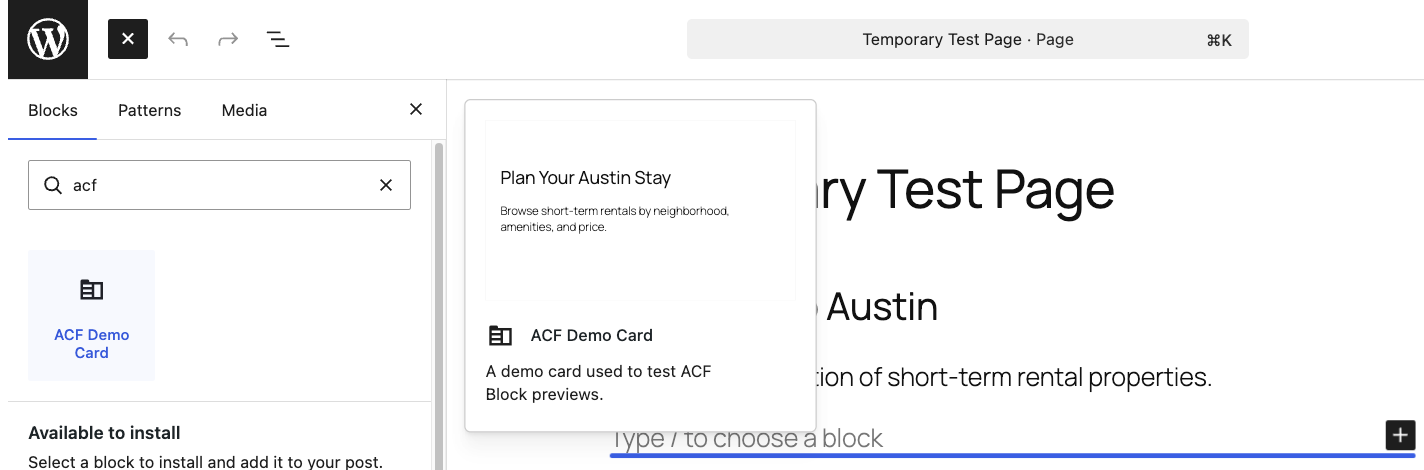
This is the finished editor experience.
Before inserting the block, the content editor can see a realistic example of what the component looks like.
This is especially useful on sites with many custom blocks. Instead of choosing from a list of block names and empty previews, editors can browse something closer to a visual component library.
What Happens After the Block Is Inserted?
There is an important distinction to understand.
The example values are only used to build the visual block preview. Click the block in the inserter to add a new copy to the page. The newly inserted block’s actual ACF fields will still be empty.
For the problem covered in this guide, we want example data because our goal is to improve the block-selection experience.
Why Not Use a Static Preview Image?
Another approach is to detect the preview state in the PHP template and display an image:
if ( $is_preview ) {
    echo '<img src="preview-image.jpg" alt="Block preview">';
    return;
}
That can work, but it creates a separate representation of the block.
It may become outdated when the component design changes. It also does not use the block’s real markup or current styles.
Using example ACF data allows WordPress to render the actual PHP template with temporary values.
This has several benefits:
- The preview uses the real block markup
- Current block styles are reflected
- No separate preview image is required
- The example values stay close to the block configuration
- Editors get a more accurate representation of the component
Working With More Complex ACF Fields
Our demo uses a Text field and Text Area field, but the same general pattern can be used with other ACF field types.
The value inside example.attributes.data needs to match the structure expected by the field.
For example:
- A True/False field may use
0or1 - A Post Object or Relationship field may use post IDs
- A Repeater field needs to preserve the expected nested data structure
- An Image field may need the value format expected by the template and field configuration
Start with simple fields while testing the workflow, then add more complex values once the basic preview works.
Conclusion
ACF Stoke!!! You now have an ACF Block with a populated visual preview powered by example field data in block.json.
The result is a meaningful block inserter preview that helps content editors understand the component before adding it.
For sites with a growing library of custom ACF Blocks, this small addition can make the Block Editor feel more visual, discoverable, and user-friendly.
[1] WP Engine is a proud member and supporter of the community of WordPress® users. The WordPress® trademark is the intellectual property of the WordPress Foundation. Uses of the WordPress® trademarks in this website are for identification purposes only and do not imply an endorsement by WordPress Foundation. WP Engine is not endorsed or owned by, or affiliated with, the WordPress Foundation.
Supercharge Your Website With Premium Features Using ACF PRO
Speed up your workflow and unlock features to better develop websites using ACF Blocks and Options Pages, with the Flexible Content, Repeater, Clone, Gallery Fields & More.
Related
- ACF Blocks: ACF Blocks
- Functions: acf_register_block_type()
- Field Types: User
- ACF Blocks: ACF Blocks FAQ
- ACF Blocks: Create Your First ACF Block