
Key points:
- Block themes use HTML block templates, so
get_field()andthe_field()won’t run there. You’ll need to use blocks to output field data. - You have three options: Block Bindings, third-party field display blocks, or Advanced Custom Fields (ACF®) Blocks.
- Block Bindings are best for simple meta-core block output, but weak for complex fields and editor UX.
- Field block plugins give visual selection and work in Query Loops, but PRO tiers are often needed for repeaters/galleries/groups.
- ACF Blocks let you render any field type with full markup control using PHP templates (including loop context).
If your Advanced Custom Fields (ACF®) workflow relied on classic theme PHP templates, block themes break that pattern.
Functions like get_field() and the_field() won’t execute in block theme template files because those files contain HTML block markup, not PHP.
This guide covers three methods for displaying ACF fields in block themes:
- Block Bindings connect core blocks to field values using native WordPress functionality.
- Third-party field block plugins provide visual editing in the Site Editor.
- ACF Blocks give you full PHP control through custom render templates.
Each method has different requirements and tradeoffs.
Block Bindings work without additional plugins but lack visual editing. Field block plugins hand control to clients but often require paid tiers for complex fields. ACF Blocks offer complete markup flexibility but require ACF PRO and PHP knowledge.
Shortcodes are an option, but security restrictions in block themes make them a poor choice for production sites.
How block themes break traditional ACF workflows
Block themes use HTML template files (single.html, archive.html) that contain block markup as HTML comments, not executable PHP. If you place get_field() or the_field() in these files, the functions appear as plain text on the page. They never run.
This isn’t a bug or misconfiguration.
Block themes are designed this way. WordPress parses the HTML comments as block instructions and renders them at runtime, but it doesn’t execute arbitrary PHP placed in those template files.
Classic themes worked differently. In a classic theme, single.php ran on the server during every page load, so get_field('my_field') executed and returned data. Block themes don’t have that execution context.
The solution isn’t to hack PHP execution into HTML templates.
Instead, bring ACF data into the block editor through blocks. The three methods in this guide all follow that approach.
How HTML templates and block markup replace PHP templates
In a classic theme, single.php contains PHP that runs on the server. You could call the_field('subtitle') anywhere in that file and expect output.
In a block theme, single.html contains block markup like <!-- wp:post-title /-->. WordPress reads these comments as instructions to render specific blocks. The file itself never executes as code.
Template parts follow the same pattern. A header.html file in a block theme is still HTML with block markup. Placing PHP there produces the same result, i.e., literal text, no execution.
Three ways to display ACF fields in block themes
WordPress gives you three key ways to render ACF fields in a block theme:
- Block Bindings use native WordPress functionality to connect core blocks to simple text and URL fields. No additional plugins required.
- Third-party field block plugins add visual editing in the Site Editor and work inside Query Loops. Free versions handle basic fields; PRO tiers unlock repeaters and groups.
- ACF Blocks give you full PHP control with custom markup and support for all field types. This approach requires ACF PRO.
Method 1: Using Block Bindings to connect core blocks to custom field values
Block Bindings let you connect a core block’s content to an ACF field without writing PHP. WordPress pulls the field value at render time and displays it through the bound block.
Requirements: WordPress 6.5 or later and ACF fields registered with Allow Access to Value in Editor UI enabled under Presentation.
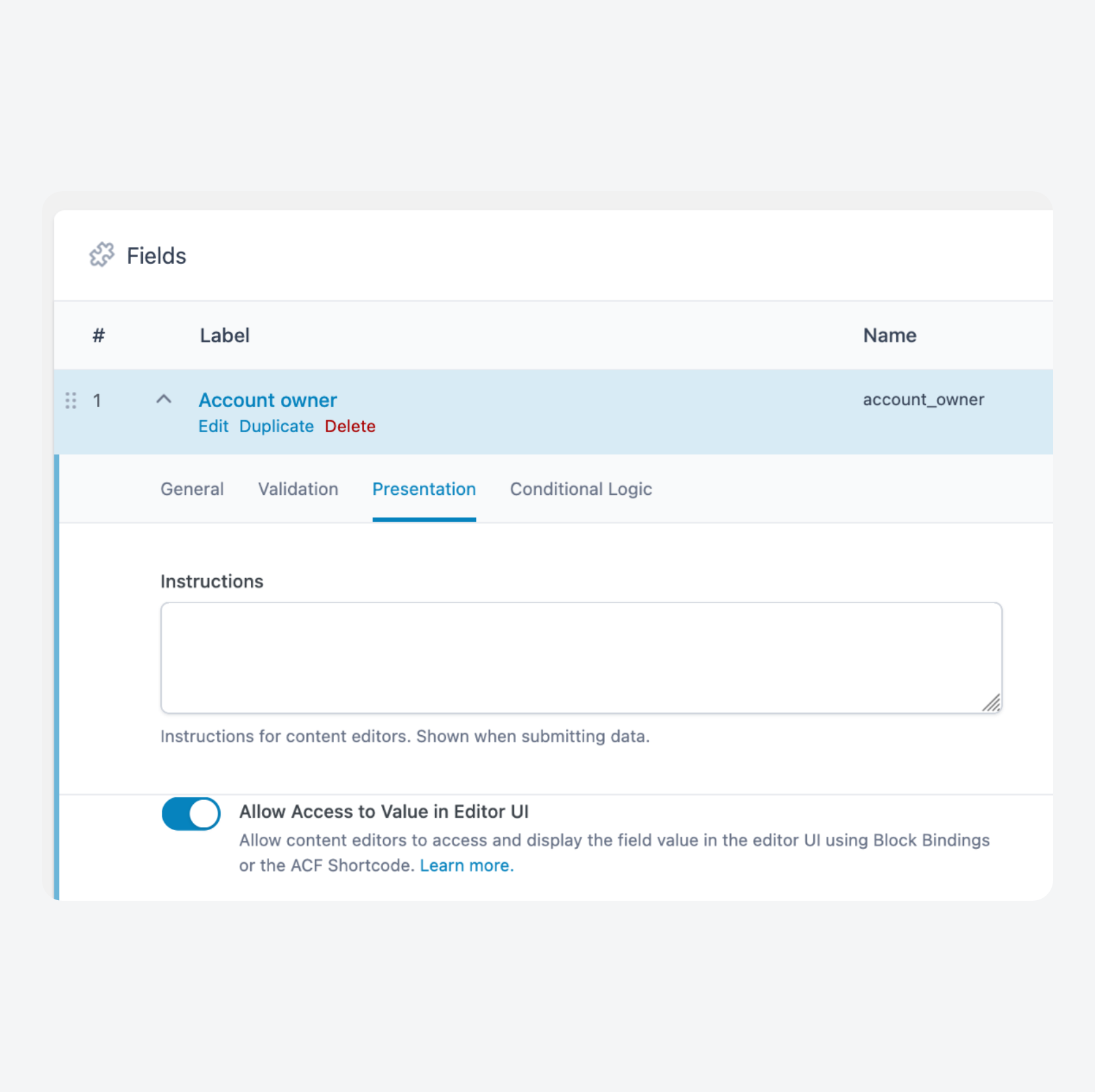
To bind an ACF field to a core block:
- Open the Gutenberg Editor and add a core block that supports bindings. These are Paragraph, Heading, Button, or Image.
- Switch to the Code Editor view for that template.
- Add a
metadata.bindingsattribute to the block markup, specifying the field key andacf/fieldas the source. This shows an Account owner field in a Button block:
<!-- wp:button {
  "metadata": {
    "bindings": {
      "text": {
        "source": "acf/field",
        "args": {
          "key": "account_owner"
        }
      }
    }
  }
} -->
<div class="wp-block-button">
  <a class="wp-block-button__link wp-element-button"></a>
</div>
<!-- /wp:button -->- Save the template and view a post that has data in that field.
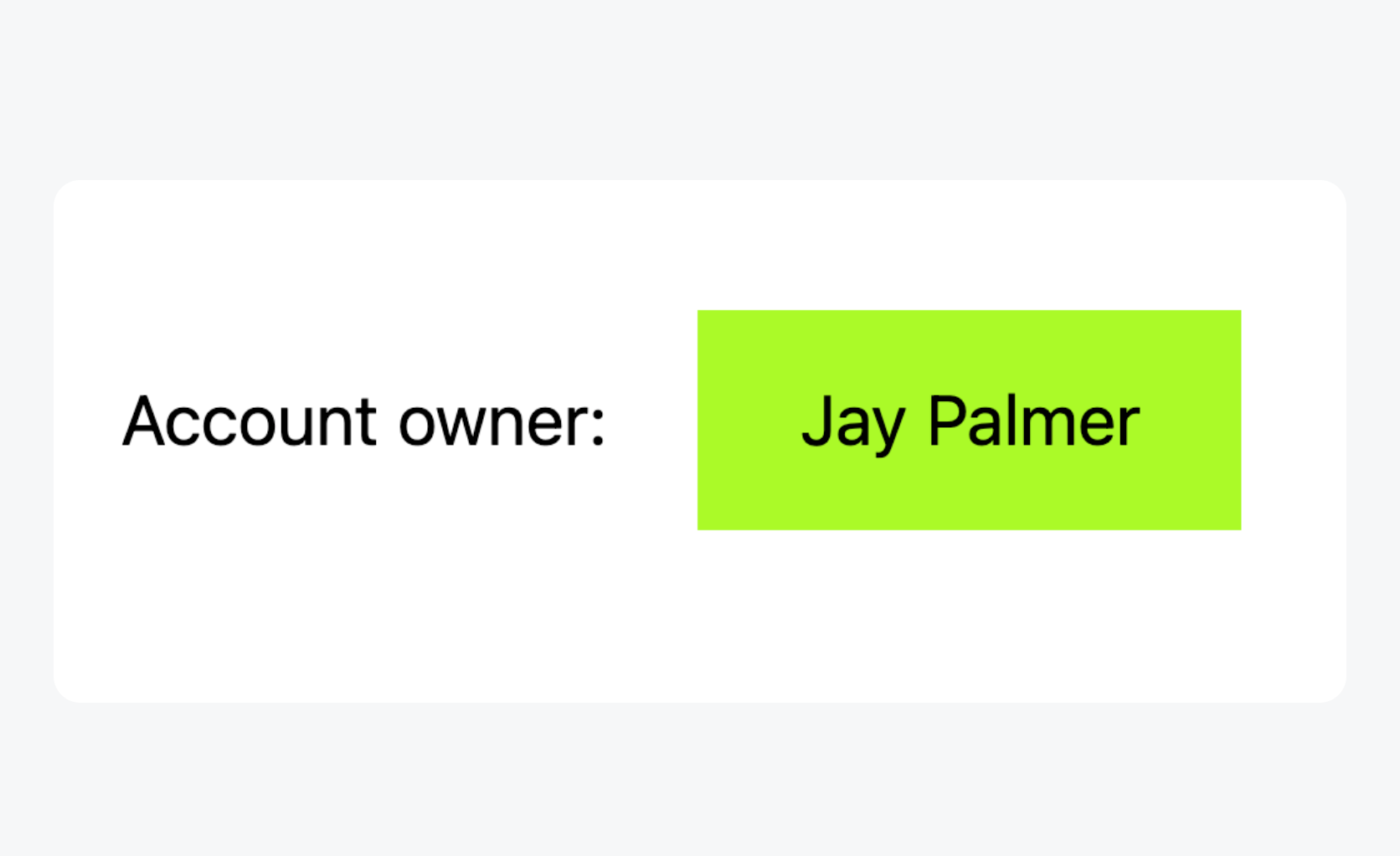
The block displays the field value on the front end. No additional plugins beyond ACF are needed.
Where Block Bindings work and where they don’t
Block Bindings handle simple text and image IDs where a core block can render the output directly.
They don’t process repeaters, galleries, groups, or relationship fields. The binding system only passes single values to core block attributes.
Bindings also require manual markup editing. Editors without code access won’t see a field picker or dropdown. This makes bindings best suited for developer-managed templates where clients interact with field values in the post editor, not the Site Editor.
Method 2: Using third-party field block plugins for visual editing
Field block plugins add ACF field output as blocks you can insert through the Site Editor interface. Editors pick fields from a dropdown instead of editing markup.
To display an ACF field using ACF Field Blocks:
- Install and activate the plugin from the WordPress repository.
- Open the Block Editor and navigate to the template or template part you want to edit.
- Add an ACF Field block from the block inserter.
- Select the target field from the dropdown in the block sidebar.
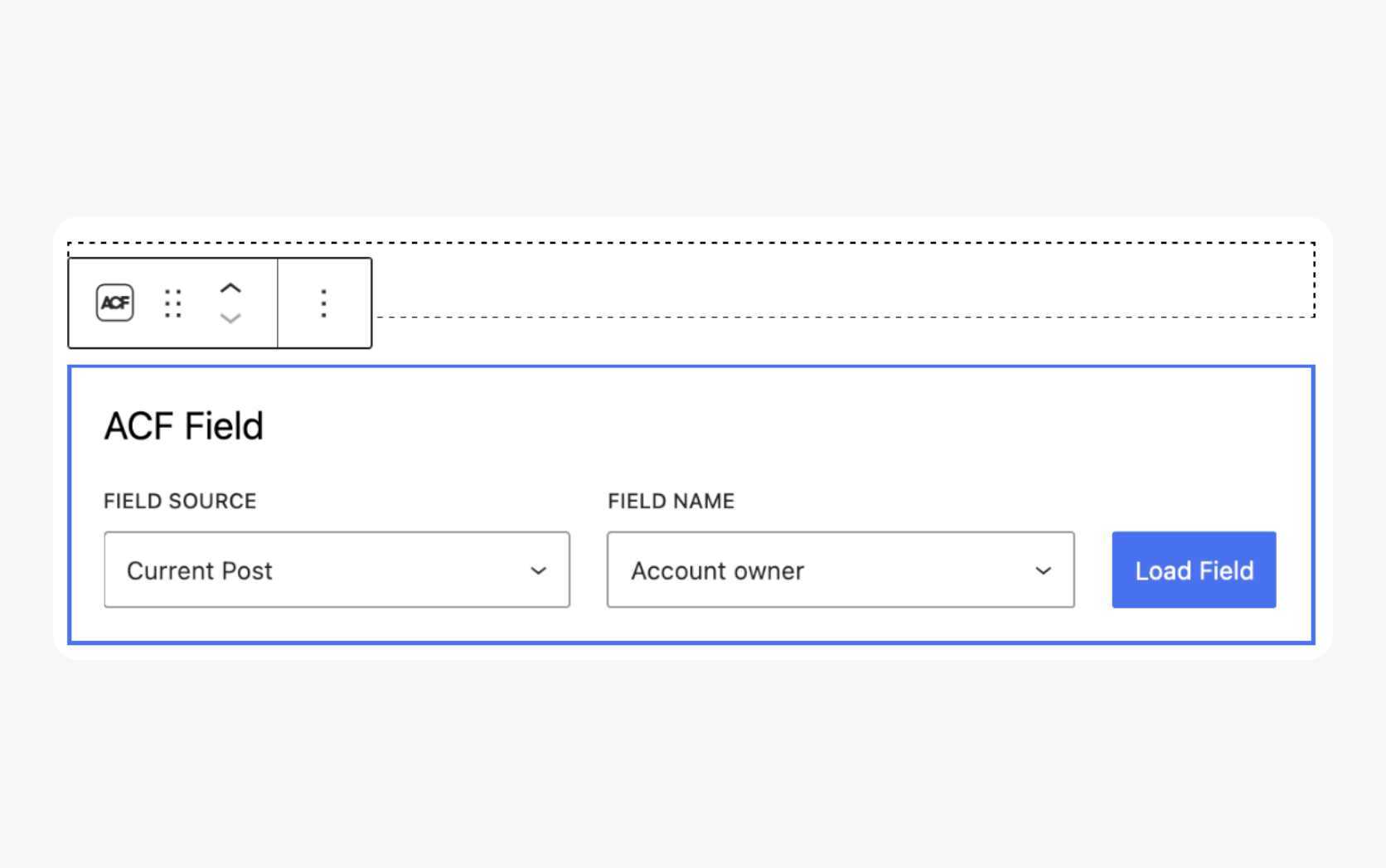
- Clock Load Field and the value should appear right inside the editor.
This approach works well for handing sites to clients who need to add or rearrange fields without developer involvement.
Displaying fields in templates and Query Loops
Field blocks work inside Query Loop blocks without extra configuration.
- Open a template that contains a Query Loop (or add one).
- Insert the field block inside the Post Template block.
- Select the field you want to display.
The plugin detects post context automatically and displays the correct value for each post in the loop. Combine field blocks with Post Title and Featured Image blocks to build archive grids. No custom code or manual context passing required.
PRO requirements and limitations
Free versions of field block plugins support text, URL, email, and number fields.
Repeater, Gallery, Group, and Flexible Content output typically require a paid upgrade. Check the plugin documentation for nested field support before building a complex field structure that depends on features you don’t have access to.
If your project uses both a field block plugin PRO tier and ACF PRO, factor both costs into the budget.
Method 3: Building custom ACF Blocks with PHP templates
ACF Blocks are custom WordPress blocks that use a PHP-based template to render ACF data within the block editor. They bypass the limitations of block themes – which use static HTML templates – by providing a secure environment to execute PHP logic like get_field() or have_rows().
This method is the only way to maintain total structural control in a block-based site.
Block Bindings are restricted to simple strings and third-party blocks lack deep customization. ACF Blocks allow you to build complex components like repeaters, galleries, and relationship loops using the PHP you already know.
They also resolve the “context problem” within Query Loops, ensuring accurate data renders automatically in post grids. For developers who require precise markup and full field support without the security vulnerabilities of shortcodes, ACF Blocks are the industry standard.
Supercharge Your Website With Premium Features Using ACF PRO
Speed up your workflow and unlock features to better develop websites using ACF Blocks and Options Pages, with the Flexible Content, Repeater, Clone, Gallery Fields & More.
Registering ACF Blocks with block.json
Requirements: ACF PRO. ACF Blocks are incompatible with the standalone Gutenberg plugin.
The block.json file defines your block’s metadata and tells ACF where to find the render template.
- Create a block folder inside your theme, for example: /wp-content/themes/my-theme/blocks/my-block/.
- Create a block.json file inside that folder to define the block metadata and point to your PHP template.
{
"name": "acf/my-block",
"title": "My Custom Block",
"acf": {
"mode": "preview",
"renderTemplate": "render.php"
}
}- Create the PHP template named render.php inside the same folder to handle the block’s HTML output.
- Retrieve your ACF field values in render.php using
get_field(). - Register the block in your theme’s functions.php file by pointing
register_block_type()at the block directory.
add_action('init', function () {
register_block_type(
get_template_directory() . '/blocks/my-block'
);
});- Create an ACF Field Group and map your fields by setting the Location rule to Block is equal to My Custom Block.
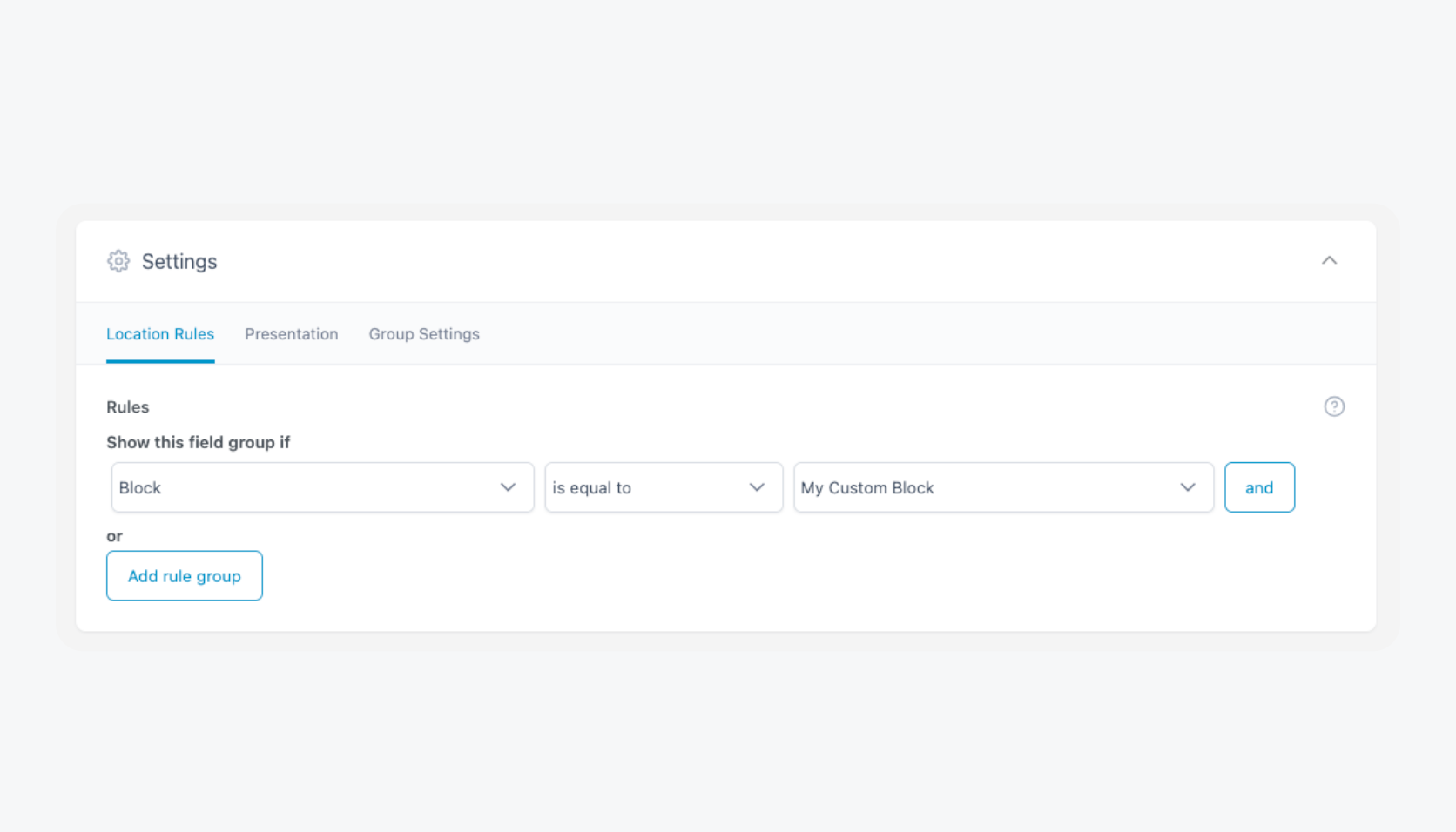
- Insert the block into any post or template from the Block Inserter and fill in the ACF fields.
Rendering field data and handling Query Loop context
When rendering field data, ACF Blocks output values using standard PHP functions like get_field() inside the block’s render.php template.
Outside of loops, this works without modification because WordPress automatically sets the global post context.
When a block is used inside a Query Loop, however, the global post may not match the post being rendered.
To ensure the correct data is loaded, the block should resolve the post ID from the block context and pass it explicitly to ACF functions. This typically means checking for a provided postId in $block['context'] and falling back to get_the_ID() when it’s not present.
All field lookups should then use that resolved ID. This adjustment is usually the only change required to make an existing ACF Block work reliably in archives, grids, and other loop-based templates.
Why shortcodes are disabled and best avoided
ACF shortcodes like [acf field="field_name"] are disabled by default in block theme templates outside post content areas. This is intentional.
Enabling shortcodes in templates requires adding a filter:
add_filter( 'acf/shortcode/allow_in_block_themes_outside_content', '__return_true' );This filter creates a security problem. Once enabled, any user with permission to insert a Shortcode block can output any ACF field value, including fields they shouldn’t access. The shortcode doesn’t distinguish between field groups or check user capabilities.
Shortcodes also have functional limits.
They output simple text only. Displaying an image field, a URL with custom link markup, or any complex field type requires workarounds that defeat the purpose of using shortcodes.
The block-based methods in this guide handle security and complex output properly. Use Block Bindings, a field block plugin, or ACF Blocks instead.
Supercharge Your Website With Premium Features Using ACF PRO
Speed up your workflow and unlock features to better develop websites using ACF Blocks and Options Pages, with the Flexible Content, Repeater, Clone, Gallery Fields & More.
Advanced ACF Block techniques
ACF Blocks support nested blocks, giving editors flexibility within a structured component.
To enable nested blocks inside an ACF Block:
- Enable JSX support (e.g.
"supports": { "jsx": true }in block.json). - Use
<InnerBlocks />in your render.php template where child blocks should appear. - Optionally configure innerBlocks in block.json (or parent/allowedBlocks) to constrain which blocks can be used.
This pattern works well for components where clients control inner content – a card block with an editable body area, or a section wrapper that accepts any blocks inside it.
For page-builder functionality, combine ACF Blocks with Flexible Content fields. Each layout in the Flexible Content field maps to a different block configuration, letting editors build pages from predefined components.
Use ACF Local JSON to version-control field groups alongside your theme. Field configurations save as JSON files you can commit to Git and sync across development, staging, and production environments.
Repeaters, relationships, and InnerBlocks
Loop through Repeater rows in render.php using have_rows() and the_row(). Each iteration gives you access to subfield values through get_sub_field().
Output Relationship and Post Object fields as linked post titles, custom post grids, or any markup you need. You control the loop and the HTML.
For hybrid layouts, nest <InnerBlocks /> inside repeater output. This lets editors add freeform content within each structured row.
After editing field values in the post editor, verify the block re-renders correctly on the front end. Changes should reflect immediately without manual cache clearing.
Next steps: ACF in block themes
In classic themes, you print custom fields directly in PHP templates. In modern block themes, those same fields have to flow through blocks (via Block Bindings, field blocks, or ACF Blocks) because the HTML templates themselves don’t run PHP.
For block themes, choose your method based on who maintains the site after launch. Block Bindings suit developer-managed templates where editors won’t touch the Site Editor. Field block plugins give clients visual control over field placement without code access.
ACF Blocks provide full PHP flexibility when you need custom markup or complex field handling.
You can also mix methods on the same project. A marketing site might use ACF Blocks for a custom hero component and a field block plugin for blog archive templates that clients update themselves.
Block themes require a shift in thinking: field data flows through blocks rather than PHP templates. But ACF itself works the same way it always has – fields store and retrieve data identically whether you access them through bindings, a plugin block, or a custom ACF Block.
ACF Blocks in particular keep your existing skills relevant. You’re still writing get_field() and the_field(), just inside a block’s render template.
Download ACF PRO to get started.



For plugin support, please contact our support team directly, as comments aren't actively monitored.