
Key points:
- WordPress® includes a built-in object cache, but it’s non-persistent and is cleared after every page request.
- Redis makes object caching persistent by storing cached objects across requests, reducing repeated database queries on dynamic sites.
- Redis object caching complements page caching rather than replacing it. Page caches store HTML, while Redis caches database objects such as posts, options, users, and metadata.
- Before enabling Redis, verify that your hosting environment supports it, configure unique cache prefixes, and confirm you can recover quickly if the Redis layer fails.
- For ACF-powered sites, Redis can reduce the cost of repeatedly loading custom field data, while ACF provides the structured content architecture needed to build fast, scalable WordPress® experiences.
Redis object caching is often recommended as a quick win for WordPress®1 performance, but the real question is not whether to enable it. It is whether your site is set up to benefit from it, and whether you know how to recover when it stops working.
That distinction matters because Redis sits between WordPress® and the database. When it works, it can reduce repeated database queries and speed up dynamic parts of a site. When it fails, the symptoms can look like plugin bugs, hosting problems, stale content, or unexplained admin issues.
This is especially relevant for WooCommerce stores, membership sites, directories, and sites that use Advanced Custom Fields (ACF®), where page caching cannot handle every request. In these environments, persistent object caching can reduce repeated work and ease database load.
In this guide, you’ll learn how WordPress® object caching works, when Redis is worth enabling, how to configure and test it correctly, and what to do when the cache layer breaks.
Supercharge Your Website With Premium Features Using ACF PRO
Speed up your workflow and unlock features to better develop websites using ACF Blocks and Options Pages, with the Flexible Content, Repeater, Clone, Gallery Fields & More.
How WordPress object caching works and why the default falls short
WordPress® already includes an object cache. During a page request, it stores frequently used data in memory so it does not have to repeatedly query the database for the same information. If a plugin, theme, or template requests the same post, option, user, taxonomy term, or metadata multiple times, WordPress® can reuse the cached object instead of running another database query.
Developers can also work with this cache directly through functions such as wp_cache_get(), wp_cache_set(), and wp_cache_delete(). This built-in system helps reduce duplicate queries and improve efficiency during a single request.
The limitation is that WordPress’s default object cache is non-persistent. Once the page finishes loading, the cache is discarded. On the next request, WordPress® has to rebuild the same cached objects from the database.
For small sites with effective page caching, this is often acceptable. The problem appears on dynamic sites where full-page caching cannot safely serve every visitor, such as:
- WooCommerce carts and checkouts.
- Membership portals.
- Logged-in dashboards.
- Search results.
- Editorial workflows.
- Other personalized experiences.
All of these require WordPress® to generate content dynamically. That means the same database lookups may be repeated across thousands of requests.
Redis changes this behavior by making object caching persistent. Instead of caching objects only in PHP memory for the current request, Redis stores them in a dedicated in-memory data store that persists between requests. When WordPress® needs the same data again, it can retrieve it from Redis rather than rebuilding it from the database.
This is fundamentally different from page caching:
- A page cache stores the final HTML output of a page, making it ideal for anonymous visitors and largely static content.
- Redis operates deeper in the application stack, accelerating data retrieval while still allowing WordPress® to assemble dynamic pages on demand.
Why Redis matters for ACF-powered sites
For ACF-powered sites, this can be particularly valuable. Custom field data is typically stored in post meta and often involves options pages, relationship fields, repeaters, and flexible content layouts. Redis will not fix inefficient queries or poor data architecture, but it can reduce the cost of repeatedly retrieving data that WordPress® has already loaded.
For more on optimizing custom field queries themselves, see this guide to WordPress® post meta query best practices.
What you need before enabling Redis
Redis object caching can be free, but a Redis-enabled WordPress® stack is not always free. Installing a plugin is only one part of the setup.
Before enabling Redis, make sure your hosting environment is ready to support it. Also, at a minimum, your host should provide:
- A running Redis server (or Redis-compatible service).
- The connection details needed to access it.
- A supported PHP client such as PhpRedis, Predis, or Relay, and permission for WordPress® to create and manage the
/wp-content/object-cache.phpdrop-in.
Additionally, you should know the Redis host, port, socket path, password, and database number if your environment requires custom configuration.
One setting that deserves special attention is the cache prefix. If staging and production environments share the same Redis instance without separate prefixes or databases, cached data can leak between environments. The result may be stale content, unexpected behavior, or difficult-to-diagnose bugs.
To get started:
- Redis Object Cache is the best free starting point for most sites. It supports PhpRedis, Predis, Relay, replication, sentinels, clustering, and WP-CLI, making it a focused object caching solution rather than a general-purpose performance plugin.
- Memcached is another option, but Redis offers more advanced capabilities, including persistence options, replication, clustering, and a stronger WordPress® ecosystem.
- Object Cache Pro is a premium alternative for stores and applications where object caching is business-critical. It adds features such as advanced analytics, debugging tools, compression, secure connections, health checks, and WooCommerce-focused optimizations.
The key takeaway is not to enable Redis just because a plugin makes it possible. Enable it only when the server layer, PHP client, cache configuration, and recovery process are all in place.
Configuring Redis connection details in wp-config.php
Once you have installed a Redis object cache plugin, enable it.
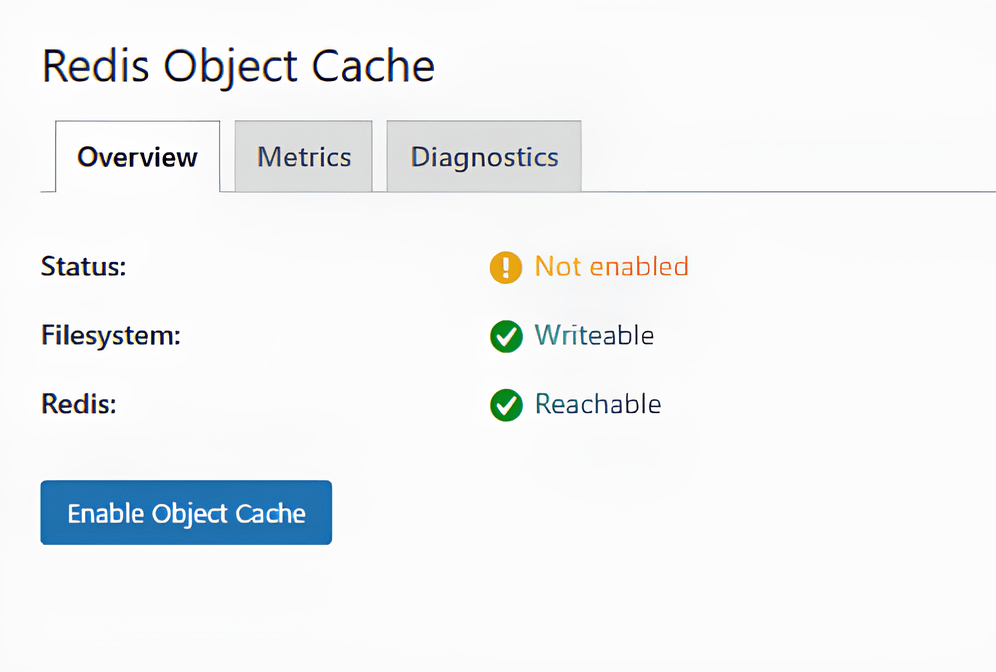
The next step is to configure the connection between WordPress® and Redis:
- On many managed WordPress® hosts, no manual configuration is required. The Redis Object Cache plugin can often connect automatically using the default Redis location (
127.0.0.1:6379) and database0. In these environments, enabling the object cache may be as simple as activating the plugin and turning it on. - On self-managed servers, Docker deployments, VPS environments, and setups where multiple applications share the same Redis instance, Manual configuration becomes more important. In those cases, connection details should be defined in wp-config.php before enabling the object-cache drop-in.
A basic configuration looks like this:
// Redis object cache connection.
define( 'WP_REDIS_HOST', '127.0.0.1' );
define( 'WP_REDIS_PORT', 6379 );

// Use a unique prefix per site/environment to avoid collisions.
define( 'WP_REDIS_PREFIX', 'examplecom_production:' );

// Use a Redis database assigned to this site.
define( 'WP_REDIS_DATABASE', 0 );

// Keep timeouts short so Redis issues do not stall requests.
define( 'WP_REDIS_TIMEOUT', 1 );
define( 'WP_REDIS_READ_TIMEOUT', 1 );
The most important settings are:
WP_REDIS_HOSTandWP_REDIS_PORT, which are the most important because they tell WordPress® where Redis is running. Some hosts use a Unix socket rather than a TCP connection, in which case you’ll typically configureWP_REDIS_SCHEMEandWP_REDIS_PATHinstead.WP_REDIS_PREFIX, which prevents cache key collisions between sites and environments.WP_REDIS_DATABASE, which lets you isolate cached data into a dedicated Redis database.- Timeout settings, which help prevent Redis connection issues from slowing down page requests.
The cache prefix deserves special attention. Staging, production, local development, and multisite environments should never share the same prefix. If two WordPress® sites use the same Redis server and database without unique prefixes, they can overwrite or read each other’s cached objects. This can lead to stale content, unexpected admin behavior, or even staging data appearing on production.
For more on managing field groups across environments, see this guide on ACF Local JSON.
A simple environment-specific prefix might look like:
define( 'WP_REDIS_PREFIX', 'acfsite_staging:' );For stronger isolation, combine a unique prefix with a dedicated Redis database:
define( 'WP_REDIS_PREFIX', 'acfsite_production:' );
define( 'WP_REDIS_DATABASE', 1 );
If your Redis instance requires authentication, add a password constant as well:
define( 'WP_REDIS_PASSWORD', 'your-redis-password' );After saving your changes in wp-config.php, enable the object cache from Settings → Redis or via WP-CLI:
wp redis enable
wp redis status
Testing whether your Redis cache is actually working
Enabling Redis is only the first step. To confirm that object caching is providing real value, you need to verify that WordPress® is writing objects to Redis, retrieving them on subsequent requests, and reducing repeated database work.
1. Check the Redis Object Cache plugin’s status screen or WP-CLI diagnostics
The status page should show:
- Whether the object-cache.php drop-in is active.
- Whether Redis is reachable.
- Which PHP client is being used.
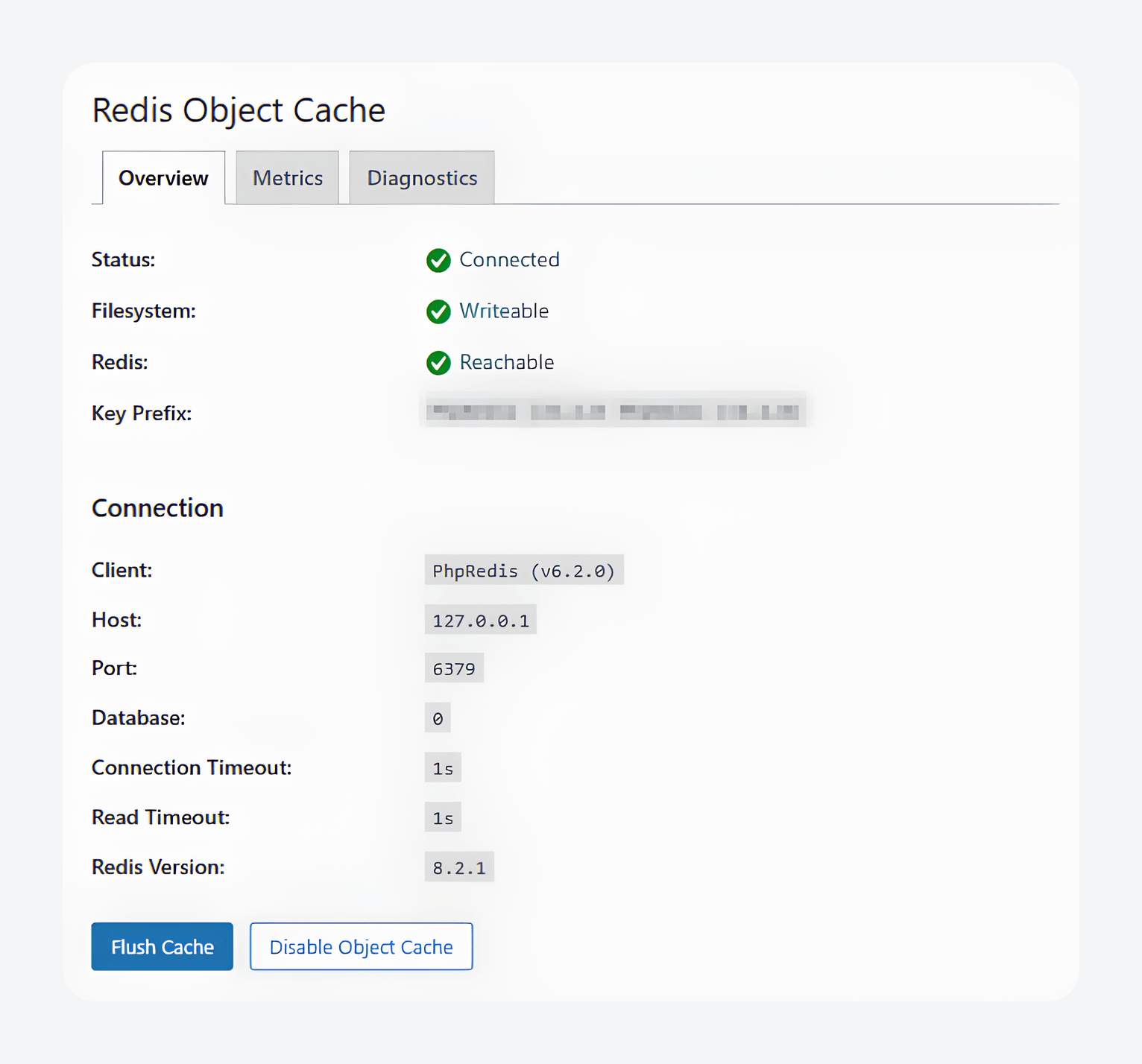
Don’t stop at the status screen, though. A healthy connection does not automatically mean Redis is improving performance.
2. Test actual site behavior.
Keep in mind that:
- A cache hit means WordPress® requested an object that Redis already had available.
- A cache miss means Redis did not contain the object yet, so WordPress® had to generate or retrieve it from the database.
Load a dynamic page once, then refresh it several times. The first request will often generate more misses because Redis is still being populated. As the same data gets reused, the hit count should begin increasing faster than the miss count.
Focus your testing on pages where object caching matters most:
- For WooCommerce stores, that might be product archives, customer account areas, or cart-related pages.
- For membership and LMS sites, test dashboards, course listings, and logged-in experiences.
- For ACF-powered sites, examine directories, search results, relationship-heavy templates, and pages that repeatedly load custom field data.
3. Check database activity before and after enabling Redis
Compare database activity before and after enabling Redis using tools such as Query Monitor or your host’s Application Performance Monitoring (APM) platform. Successful object caching often appears as:
- Fewer database queries.
- Lower backend response times.
- Reduced database load during repeated requests.
One common mistake is relying on Google PageSpeed Insights as the primary test. Redis operates beneath the page-rendering layer, so PageSpeed scores may not change significantly even when object caching is working correctly.
The most important thing to watch out for is whether Redis reduces repeated work on pages that cannot be fully page-cached:
- If yes, Redis is doing its job.
- If no and hit rates remain low, query counts stay unchanged, or you’re only testing anonymous pages already served by a page cache, you’re probably measuring the wrong part of the site.
What to do when Redis fails
When Redis fails, treat it as a recovery problem first and a performance problem second. The goal is to restore site stability before worrying about cache efficiency.
Here’s what to do:
- Disable the object cache drop-in: Renaming or removing /wp-content/object-cache.php stops WordPress® from routing object-cache requests through Redis and forces it to fall back to its default non-persistent cache. In many cases, this is enough to restore access to the WordPress® admin area.
- Check Redis at the server level: Confirm that the Redis service is running, reachable from WordPress, and not hitting resource limits. If Redis has crashed, restart it through your hosting dashboard, server management tools, or command line access. Server logs can often reveal whether the problem is a service failure, a networking issue, or a memory-related event.
- Check for configuration mistakes: Verify the Redis host, port, socket path, password, database number, and cache prefix in your WordPress® configuration. A migrated server, changed credentials, or copied staging configuration can break the connection even when Redis is functioning normally.
- Check the object-cache drop-in itself: If the drop-in is outdated, corrupted, or mismatched with the plugin version, update or recreate it from the plugin’s management screen or with WP-CLI.
- Flush Redis (proceed carefully only when you understand what is being stored): Clearing the cache can resolve stale or corrupted objects, but it also forces WordPress® to rebuild cached data from scratch. On WooCommerce stores, membership sites, and other high-traffic environments, this can temporarily increase database load and slow the site while the cache warms up again.
When Redis reaches its configured memory limit, its behavior depends on the server’s maxmemory-policy. Some configurations automatically evict older keys, while a noeviction policy can return out-of-memory errors instead. In WordPress, this may appear as declining cache hit rates, slower admin screens, stale data, or Redis errors in logs.
After Redis is restored, retest the parts of the site that depend on dynamic data: cart and checkout flows, account areas, search functionality, logged-in dashboards, admin editing screens, and ACF field updates.
Finally, clear any page caches if necessary, since a page cache may continue serving outdated HTML even after Redis is healthy again.
Redis object cache and ACF-powered sites
Redis object caching can be a valuable performance layer for ACF-powered WordPress® sites, particularly when templates repeatedly load custom fields, options pages, relationship fields, repeaters, and other dynamic content.
In simple terms, Redis helps WordPress® reuse work faster, while ACF helps you structure and manage the content that work depends on at scale. Together, they can improve performance on dynamic sites where page caching alone isn’t enough.
Ready to build faster, more scalable WordPress® experiences? Start using ACF to create cleaner content architectures that are easier to optimize, cache, and maintain as your site grows.
FAQ
Does Redis conflict with page caching plugins?
Redis object caching generally coexists well with page caching plugins such as NitroPack, WP Rocket, and W3 Total Cache because they operate at different layers. For a comparison of the main caching plugin options, see the WP Rocket vs W3 Total Cache breakdown. The real risk comes when multiple plugins attempt to manage the same object-cache.php drop-in. Only one plugin should control the object cache layer at a time.



For plugin support, please contact our support team directly, as comments aren't actively monitored.