Overview
In WordPress®, the Advanced Custom Fields plugin allows content teams to create structured custom data in an easy and repeatable way.
For example, a real estate site might need fields for price, bedrooms, bathrooms, location, amenities, and ratings. A recipe site might need fields for prep time, ingredients, calories, and cooking instructions. A product catalog might need fields for SKU, price, dimensions, and inventory status.
With this custom data, search engines, AI tools, answer engines, automation platforms, and external applications all need clear context to understand what content means. They must recognize that a page represents a specific property, which features a distinct location defined by latitude and longitude, alongside its unique amenities, pricing, and ratings.
Traditional SEO helped search engines discover and rank webpages. Machine-readable content goes deeper by making the structure and meaning of the content explicit, so AI tools and external systems can understand not just the page, but the data model behind it.
That is where the new ACF update comes in.
What ACF Adds for Machine-Readable Content
ACF has always been useful for modeling structured custom content in WordPress.
What is new in ACF 6.8 is that this structured content can now be exposed in a more machine-readable way.
There are two important parts to this.
First, ACF integrates with the WordPress Abilities API. This exposes ACF’s schema and data. This way, compatible external tools can discover and manipulate field groups, custom post types, taxonomies, and content through a standardized interface.
Second, ACF Pro 6.8 can automatically generate Schema.org structured data from custom fields. This means ACF fields can be mapped to Schema.org properties and output as JSON-LD on the frontend.
Stoked! This means ACF can help with:
- AI and automation workflows inside development tools
- Tools like Claude Code can connect to WordPress through MCP and interact with ACF data through the Abilities API.
- Machine-readable frontend output
- ACF fields can be mapped to Schema.org so search engines and AI systems have a clear, structured context when reading the page.
We will cover these points:
- Enabling ACF AI functionality
- Connecting Claude Code to WordPress through MCP
- Registering a custom post type, taxonomies, and field group through MCP
- Importing sample property data with WP-CLI
- Enabling ACF Schema.org support
- Testing the final machine-readable output
Prerequisites
To benefit from this article, you should be familiar with WordPress development, Advanced Custom Fields, WP-CLI, and basic command-line workflows.
You will need:
- A WordPress site
- ACF Pro 6.8.1 or later
- MCP Adapter plugin
- Claude Code
- WP-CLI access to your local WordPress site
- A Google Cloud account
- Maps JavaScript API enabled
- Geocoding API enabled
ACF’s Abilities API integration requires WordPress 6.9 or later, ACF 6.8 or later, the MCP Adapter plugin or another MCP server implementation, and an MCP-compatible client such as Claude Desktop, Claude Code, or Cursor.
What We Are Building
Before we get into the technical steps, let’s discuss what we are building.
We are going to create a local WordPress site for Austin, TX short-term rental properties.
The site will include a custom post type called “property”, three custom taxonomies (property_type, region, amenity), and ten ACF fields:
price_per_night
bedrooms
bathrooms
max_guests
address
city
location
checkin_time
checkout_time
rating
Then we will import 15 sample Austin property listings from a CSV file.
Finally, we will create a child theme that renders the ACF data on the frontend and enable ACF’s Schema.org settings so the content can be mapped to structured JSON-LD.
The end result is a WordPress site where the content is not only editable in the admin and visible on the frontend, but also structured in a way that machines can understand.
This guide is based on Iain Poulson’s DE{CODE} demo. If you prefer the video format, you can reference it here:
Setup Steps
If you want the entire code, csv file for the ACF types and fields, and WP site, you can access my repo here: https://github.com/Fran-A-Dev/acf-ai-machine-readable-
1. Spin Up a Local WordPress Environment
For this demo, I used Local by WP Engine on macOS with a stock WordPress install. Any local WordPress environment will work, as long as you can run WP-CLI against it.
Once your site is up, log in to the WordPress admin as an administrator. We will be referencing the admin user throughout the rest of the article.
2. Install the Required WordPress Plugins
Next, we need to install the plugins that make this workflow possible.
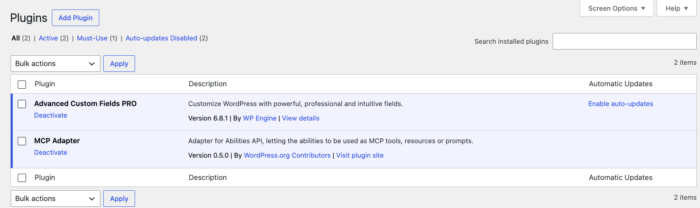
Install and activate:
Advanced Custom Fields Pro 6.8.1
MCP Adapter 0.5.0
ACF Pro gives us the custom fields, post type, taxonomy, AI, and Schema.org functionality.
The MCP Adapter plugin exposes WordPress capabilities through an MCP server so compatible clients can discover and call those abilities.
Once both plugins are installed and activated, we can enable the ACF AI functionality.
3. Enable ACF AI Features
To enable ACF’s AI functionality, we will use a small mu-plugin.
Inside your WordPress install, create this file: wp-content/mu-plugins/site.php
If the mu-plugins directory does not exist, create it.
Then add this code:
<?php
/**
 * Site-specific functionality for the ACF Claude AI demo.
 */

add_filter( 'acf/settings/enable_acf_ai', '__return_true' );
This filter enables ACF’s AI features.
We will add more code to this same mu-plugin later (for the Google Maps API key and for Schema.org). For now, the single filter is all we need.
Now that ACF AI is enabled, we can connect our local WordPress site to Claude Code through MCP.
4. Connect WordPress to Claude Code Through MCP
The next thing we need to do is wire up the local WordPress environment into Claude Code.
Every local WordPress development environment sandboxes its PHP, MySQL, and WP-CLI binaries somewhere your shell does not see by default.
External processes like Claude Code’s MCP server cannot go through those interactive shells. They need to invoke WP directly.
The fix is a small wrapper script that packages the right environment, the MySQL socket, the matching PHP binary, and the WP-CLI config path into a single executable that any external tool can call.
At the root of your local WordPress project, create a file called: .local-wp.sh
Add a script similar to this (this example targets Local on Apple Silicon Mac; adjust the binary paths if you are on Intel Mac, Windows, or a different stack):
#!/bin/bash
# Wrapper that loads site environment, then execs wp-cli.
# Used by .mcp.json so MCP clients can spawn wp without Local's Site Shell.

SITE_RUN_ID="REPLACE_WITH_YOUR_SITE_ID"    # e.g. Y7rJGfZad
PHP_VERSION="REPLACE_WITH_YOUR_PHP"        # e.g. php-8.2.29+0
MYSQL_VERSION="REPLACE_WITH_YOUR_MYSQL"    # e.g. mysql-8.4.0
LOCAL_SUPPORT="$HOME/Library/Application Support/Local"
LOCAL_SERVICES="$LOCAL_SUPPORT/lightning-services"

export MYSQL_HOME="$LOCAL_SUPPORT/run/$SITE_RUN_ID/conf/mysql"
export PHPRC="$LOCAL_SUPPORT/run/$SITE_RUN_ID/conf/php"

export PATH="$LOCAL_SERVICES/$MYSQL_VERSION/bin/darwin-arm64/bin:$PATH"
export PATH="$LOCAL_SERVICES/$PHP_VERSION/bin/darwin-arm64/bin:$PATH"
export PATH="/Applications/Local.app/Contents/Resources/extraResources/bin/wp-cli/posix:$PATH"

exec wp "$@"
Make the file executable. Run this command in your terminal at the root of the project: chmod +x .local-wp.sh
The placeholder values come from wherever your local stack stores its bundled PHP, MySQL, and config files. Every stack does this differently. Since I am using WP Engine’s Local, I open Local’s Site Shell once (right-click your site in the Local app → Open Site Shell) and run:
env | grep -E 'MYSQL_HOME|PHPRC|lightning-services' | head -5
That dumps exactly the values Local has already set for your site.
Copy SITE_RUN_ID out of the MYSQL_HOME path, and the PHP and MySQL versions out of the lightning-services paths.
A quick security note: do not commit this file to a public repo with real values, since the paths leak your username and Local site ID. Either .gitignore it and ship a .local-wp.sh.example template, or load values from a .env file.
The MCP Config
Now we can create the MCP configuration file.
At the project root, create:
.mcp.json

Then add a server entry that points to the MCP Adapter command:

{
  "mcpServers": {
    "austinproperties-mcp": {
      "type": "stdio",
      "command": "./.local-wp.sh",
      "args": [
        "mcp-adapter",
        "serve",
        "--server=mcp-adapter-default-server",
        "--user=admin"
      ]
    }
  }
}
This tells Claude Code how to start the MCP server for this WordPress site. The command uses our .local-wp.sh wrapper, then runs the MCP Adapter server through WP-CLI.
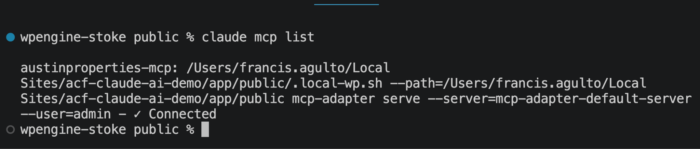
Once that is configured, verify the MCP connection from inside Claude Code: claude mcp list
You should see the MCP server listed as connected:
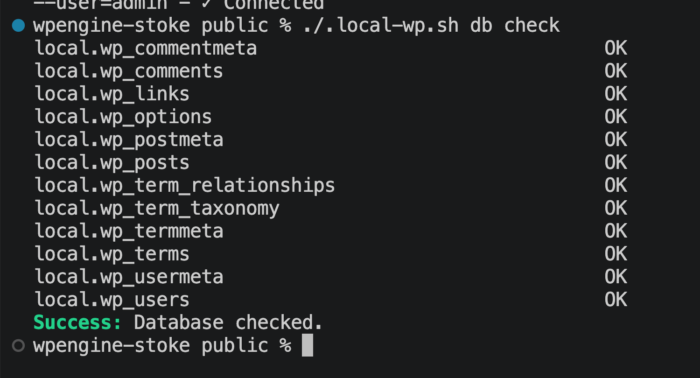
I also recommend confirming that WP-CLI can communicate with the local WordPress database: ./.local-wp.sh db check
You should see output showing that the core WordPress tables are OK. For this demo, the database check confirmed that all 12 core tables were working correctly.
At this point, Claude Code can communicate with WordPress through MCP, and WordPress can expose ACF abilities through the MCP Adapter plugin.
Design the Property Content Model
Before registering anything, we need to design the content model.
For this demo, I started with a reference CSV from Iain Poulson’s DE{CODE} session for holiday properties and adapted the shape for Austin short-term rentals. The goal was to mirror the structure closely, but replace the original location and taxonomy terms with Austin-specific property data.
The content model includes:
- One custom post type
- Three taxonomies
- One ACF field group
The custom post type is:
- property
The taxonomies are:
- property_type
- region
- amenity
The ACF field group is:
- Property Details
The field group includes 10 fields:
Field Name        | Field Type   | Purpose
------------------|--------------|-----------------------------------------
price_per_night   | Number       | Stores the nightly price
bedrooms          | Number       | Stores the bedroom count
bathrooms         | Number       | Stores the bathroom count
max_guests        | Number       | Stores the maximum number of guests
address           | Text         | Stores the street address
city              | Text         | Stores the city
location          | Google Map   | Stores the address, latitude, and longitude
checkin_time      | Time Picker  | Stores the check-in time
checkout_time     | Time Picker  | Stores the checkout time
rating            | Number       | Stores the property rating
This content model gives us a strong example because it contains several types of structured data:
- Numeric data
- Text data
- Taxonomy data
- Geographic data
- Time data
- Rating data
That makes it a good fit for testing machine-readable content.
Register the Content Model Through MCP
Now that the content model is planned, we can register it through MCP. This is the key part of the workflow.
Instead of manually clicking through the WordPress admin to create a post type, taxonomies, and fields, we can use the ACF abilities exposed through MCP.
First, discover the available abilities. In Claude Code, ask Claude to discover what the MCP server exposes. In this demo the available ACF abilities were discovered through the MCP Adapter’s discovery tool, which returned six abilities:
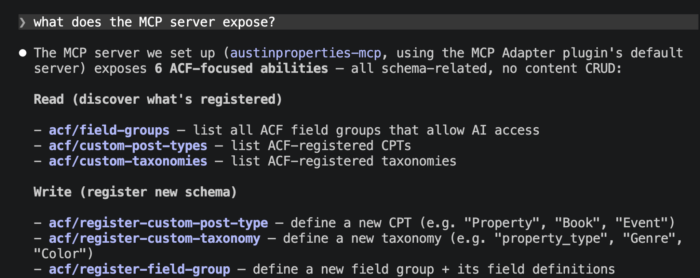
The three register abilities are what we will drive next, all through natural-language prompts to Claude Code.
Register the Property Custom Post Type
The first item to register is the property custom post type. This post type represents each short-term rental property.
The important settings are:
post type: property
show_in_rest: true
allow_ai_access: true
The show_in_rest setting makes the post type available through the WordPress REST API. The allow_ai_access setting allows the post type to be exposed through the ACF AI and Abilities API workflow.
The result is a custom post type that WordPress can use in the admin, templates can use on the frontend, and compatible AI tools can discover through MCP.
Register the Property Taxonomies
Next, register the three taxonomies.
The first taxonomy is property_type. This should be hierarchical because property types behave more like categories. Examples include: Villa, Apartment, Farmhouse, Townhouse, Lodge, Cabin.
The second taxonomy is region. This is also hierarchical because regions or neighborhoods can be grouped. Examples include: Downtown, East Austin, South Congress, Zilker, Barton Hills, Hyde Park.
The third taxonomy is amenity. This taxonomy is flat because amenities behave more like tags. Examples include: WiFi, Pool, Parking, Air conditioning, Lake view, Hot tub.
For each taxonomy, we register it with:
For each taxonomy, we register it with:

show_in_rest: true
allow_ai_access: true
This makes the taxonomy available to WordPress APIs and AI-aware tooling.
Register the Property Details Field Group
After the post type and taxonomies are registered, the next step is to register the ACF field group.
The field group is called: Property Details
It is scoped to the property post type: post_type == property
The field group contains these fields:
price_per_night
bedrooms
bathrooms
max_guests
address
city
location
checkin_time
checkout_time
rating
The location field uses the ACF Google Map field type. This is important because it stores a structured location object that includes values like:
address
lat
lng
zoom
Once the field group is registered, the property post type has a complete structured data model.
The important thing to note is that we did not just create fields for the WordPress admin. We created a schema that compatible tools can discover and use through the ACF Abilities API integration.
Add Property Types, Regions, and Amenities
With the custom taxonomies registered, the next step is to populate them with terms.
Ask Claude Code to populate all three taxonomies in a single prompt:
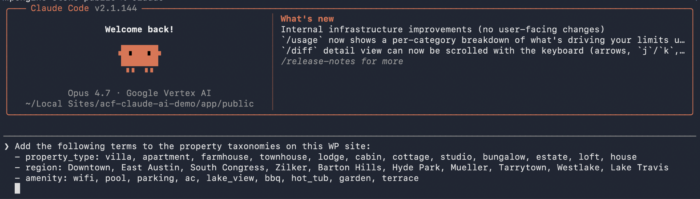
Under the hood, Claude runs wp term create <taxonomy> <name> against your site through the .local-wp.sh wrapper we set up earlier, one invocation per term, skipping any that already exist. For example:
./.local-wp.sh term create property_type "Villa"
./.local-wp.sh term create region "Downtown"
./.local-wp.sh term create amenity "wifi"
# ...and so on
A note on MCP scope: ACF abilities are registered dynamically. Before a custom post type or taxonomy exists, the available MCP abilities are focused on creating the schema, such as registering ACF-managed post types, taxonomies, and field groups.
After those post types and taxonomies are created, ACF dynamically registers additional CRUD abilities for the content that belongs to them. For example, once the property post type exists, ACF can expose abilities for creating and managing property posts. Once taxonomies like region or amenity exist, ACF can expose abilities for managing their terms.
So if you do not see post or term creation abilities at the beginning of the workflow, that does not mean ACF does not support them. It usually means the relevant post type or taxonomy has not been registered yet.
For this demo, I used MCP to create the schema and WP-CLI to seed terms and import sample property content from a CSV file. That kept the import process simple and repeatable while still showing how ACF makes the content model discoverable through MCP.
At this point, the WordPress install has:
- A property post type
- 12 property type terms
- 10 Austin region terms
- 9 amenity terms
- A Property Details ACF field group
Now we can configure the Google Map field.
Configure the ACF Google Map Field
Because the Property Details field group includes an ACF Google Map field, we need to give it a Google Maps API key. Please follow the documentation on ACF Google Maps here.
Import Sample Property Data with AI
At this point, we have the content model, but we do not have any property content yet.
To make the demo realistic, I created a CSV file with 15 Austin short-term rental properties.
Create a file called: austin-properties.csv
The CSV includes columns for:
name
description
property_type
region
amenities
price_per_night
bedrooms
bathrooms
max_guests
address
city
lat
lng
checkin_time
checkout_time
rating
The amenities column uses pipe-separated values, for example wifi|pool|parking, so you can assign multiple amenities to one property.
Here is a simplified example row (header + one data row):
name,description,property_type,region,amenities,price_per_night,bedrooms,bathrooms,max_guests,address,city,lat,lng,checkin_time,checkout_time,rating
Zilker Park Bungalow Hideaway,"Two-bedroom bungalow tucked between Zilker Park and Barton Springs.",bungalow,Zilker,wifi|ac|parking|garden|hot_tub,245,2,2,4,2014 Goodrich Ave,Austin,30.2638,-97.7702,15:00,11:00,4.8
Once the MCP server is wired up, Claude can discover the property CPT’s abilities — creating posts, assigning taxonomy terms, updating ACF fields — and run the import for you. Open Claude in the project directory and ask something like:
“Read austin-properties.csv and import each row into the property CPT. For each row, create the post, assign the property_type, region, and amenity taxonomy terms (creating any that don’t exist), and populate the ACF fields. Format the location field as an array with address, lat, lng, and zoom: 14, and the check-in/out times as H:i:s. Skip any rows where a property with that title already exists.“
Claude will walk the CSV, call the right abilities for each row, and report back what it created and
skipped. This is the demo’s whole point: structured WordPress data, driven by natural language, through
MCP.
Option 2: Use a deterministic import script
If you’d rather have a repeatable, scriptable seed — useful for rebuilding the demo from scratch, or for
larger CSVs where streaming hundreds of tool calls may cause bottlenecks — here’s a WP-CLI script that does the same thing.
This script should:
- Read the CSV
- Loop over each row
- Skip the row if a property with that title already exists
- Create a new property post
- Look up taxonomy terms by slug or name, and create them if missing
- Update each ACF field with update_field()
- Format the Google Map field as an array with address, lat, lng, and zoom
- Format check-in and check-out times as H:i:s
The file is called import-properties.php at the project’s root. Please reference the script from my GitHub repo here if needed.
After importing, you can verify the posts. For this demo, the import created 15 properties with IDs 31 through 45.
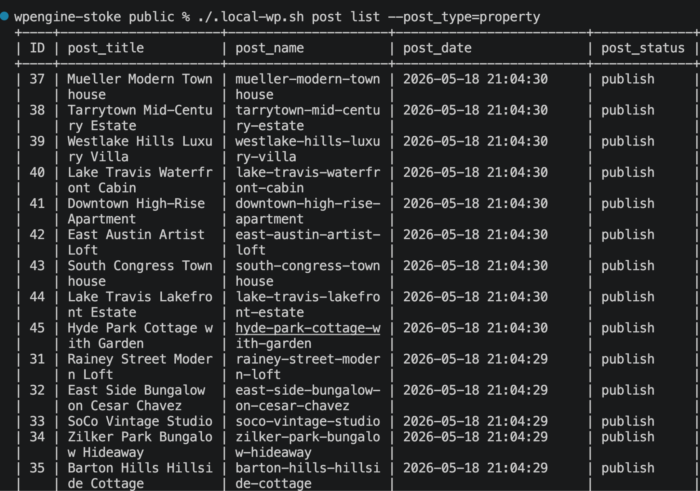
You can also verify terms for a specific property:
./.local-wp.sh post term list 31 property_type
./.local-wp.sh post term list 31 region
./.local-wp.sh post term list 31 amenity
To verify ACF values, run:./.local-wp.sh eval 'print_r( get_fields(31) );'
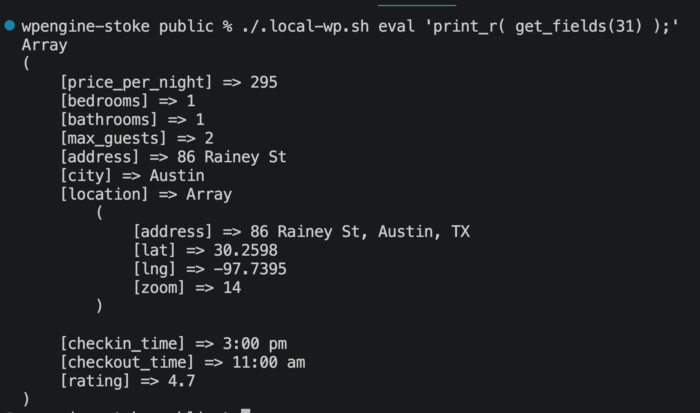
If you see the ACF field values returned, the import worked.
Render Property Data on the Frontend
ACF field values are stored with the post, but they do not automatically appear on the frontend. Your theme still needs to decide how that data should be displayed.
For this demo, I created a small child theme of Twenty Twenty-Five and added a custom single-property.html post type. property
The template renders the normal WordPress content, such as the title, featured image, and post content, along with a few shortcode blocks that output the ACF fields and taxonomy terms.
Those shortcodes use standard WordPress and ACF functions like get_field() get_the_terms()
I also conditionally loaded the Google Maps JavaScript only on single property pages, so the map script is not loaded across the entire site.
Once the child theme was ready, I activated it with WP-CLI:
bash

./.local-wp.sh theme activate twentytwentyfive-child
After that, visiting a property page showed the post content, ACF field values, taxonomy terms, and a live Google Map pin rendered together:
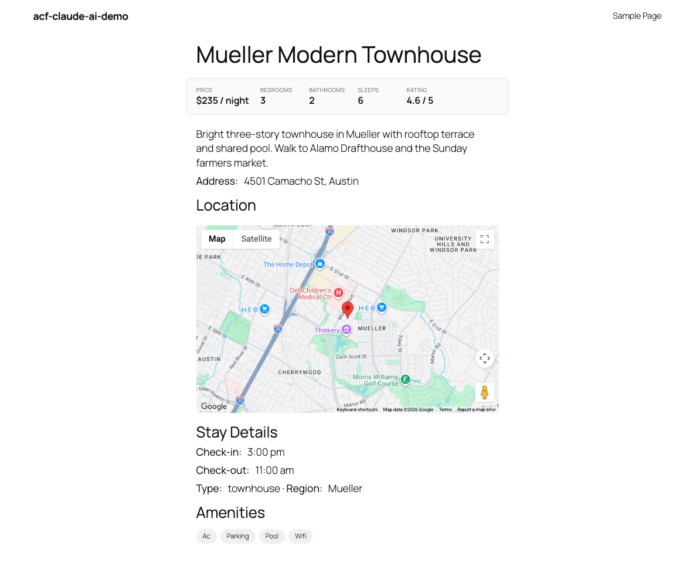
How you render this data is a theming decision. You could use a block theme template, classic PHP templates, custom blocks, shortcodes, or a headless frontend. The important part is that ACF gives you the structured data, and your frontend decides how to present it.
In the next section, we will look at the Schema.org output, which gives us another machine-readable layer on the frontend without requiring the fields to be visually rendered in the same way.
Enable Schema.org Support in ACF
Now that the content model and frontend are working, we can enable ACF’s Schema.org functionality. This is what allows ACF fields to be mapped to structured data.
Open the mu-plugin again: wp-content/mu-plugins/site.php
Add this filter: add_filter( 'acf/settings/enable_schema', '__return_true' );
Your full mu-plugin should now look similar to this:
<?php
/**
 * Site-specific functionality for the ACF Claude AI demo.
 */

add_filter( 'acf/settings/enable_acf_ai', '__return_true' );
add_filter( 'acf/settings/enable_schema', '__return_true' );

add_action( 'acf/init', function () {
    if ( defined( 'ACF_GOOGLE_MAPS_API_KEY' ) && ACF_GOOGLE_MAPS_API_KEY ) {
        acf_update_setting( 'google_api_key', ACF_GOOGLE_MAPS_API_KEY );
    }
} );
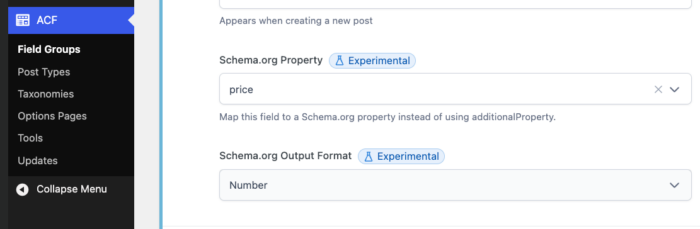
This unlocks ACF’s Schema.org settings UI.
ACF Pro 6.8 supports automatic structured data generation using Schema.org vocabulary and outputs JSON-LD from mapped custom fields.
Once enabled, go back into the WP admin and look for the Schema.org settings in ACF. You should see this:
Map ACF Fields to Schema.org
The next step is to map the WordPress content model to Schema.org.
For this demo, the property post type represents a short-term rental property, so a lodging-related Schema.org type is a good fit. Depending on the final Schema.org type you choose, you might use something like:
VacationRental (https://schema.org/VacationRental)
LodgingBusiness (https://schema.org/LodgingBusiness)
Accommodation (https://schema.org/Accommodation)
For this demo, we will use the example of VacationRental.
Now map the ACF fields to Schema.org properties. Example mappings could look like this:
ACF / WordPress Field   | Schema.org Property
------------------------|---------------------------------------
Property post type      | VacationRental
Post title              | name
Post content            | description
price_per_night         | priceRange
bedrooms                | numberOfRooms
address                 | address
location                | geo
rating                  | aggregateRating or rating-related property
amenity taxonomy        | amenityFeature
The exact mapping depends on the Schema.org type you select and how precise you want the structured data to be. For example, a Google Map field may need to map to a GeoCoordinates object with latitude and longitude. A rating field may need more than just a raw rating number if you want to generate a fully valid AggregateRating object.
The important concept is that ACF gives you a UI for connecting your custom fields to a shared structured data vocabulary.
That means machines do not have to infer that a field called price_per_night represents pricing information. You can explicitly map it to the relevant Schema.org property.
This is the difference between content that is only structured for your theme and content that is structured for external systems.
Testing the Final Result
We have our fully connected WP site with Austin rental properties. The last thing we need to test is seeing the JSON-LD showing in devtools.
View the page source and search for: <script type="application/ld+json">
If the Schema.org mapping is configured correctly, you should see JSON-LD output for the property page. You can also copy the JSON-LD and test it in Google’s Rich Results Test: https://search.google.com/test/rich-results.
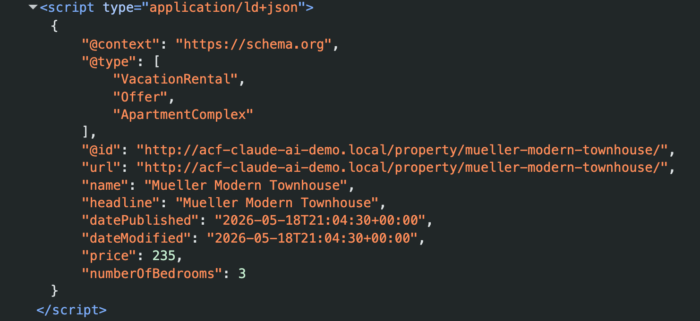
This confirms that the content is not just visible to humans. It is also being output in a machine-readable format.
Conclusion
ACF Stoke!!! You now have a local WordPress site that uses Advanced Custom Fields as more than a custom field UI.
In this guide, we created a structured content model for Austin short-term rentals. We registered a custom post type, taxonomies, and ACF field group through MCP.
We imported sample property data from a CSV file, rendered that data in a Twenty Twenty-Five child theme, and enabled ACF’s Schema.org support so the content could be mapped to machine-readable JSON-LD.
With ACF 6.8, your content model can become discoverable, structured, and machine-readable for AI tools, automation workflows, search engines, and external applications.
[1] WP Engine is a proud member and supporter of the community of WordPress® users. The WordPress® trademark is the intellectual property of the WordPress Foundation. Uses of the WordPress® trademarks in this website are for identification purposes only and do not imply an endorsement by WordPress Foundation. WP Engine is not endorsed or owned by, or affiliated with, the WordPress Foundation.
Supercharge Your Website With Premium Features Using ACF PRO
Speed up your workflow and unlock features to better develop websites using ACF Blocks and Options Pages, with the Flexible Content, Repeater, Clone, Gallery Fields & More.